


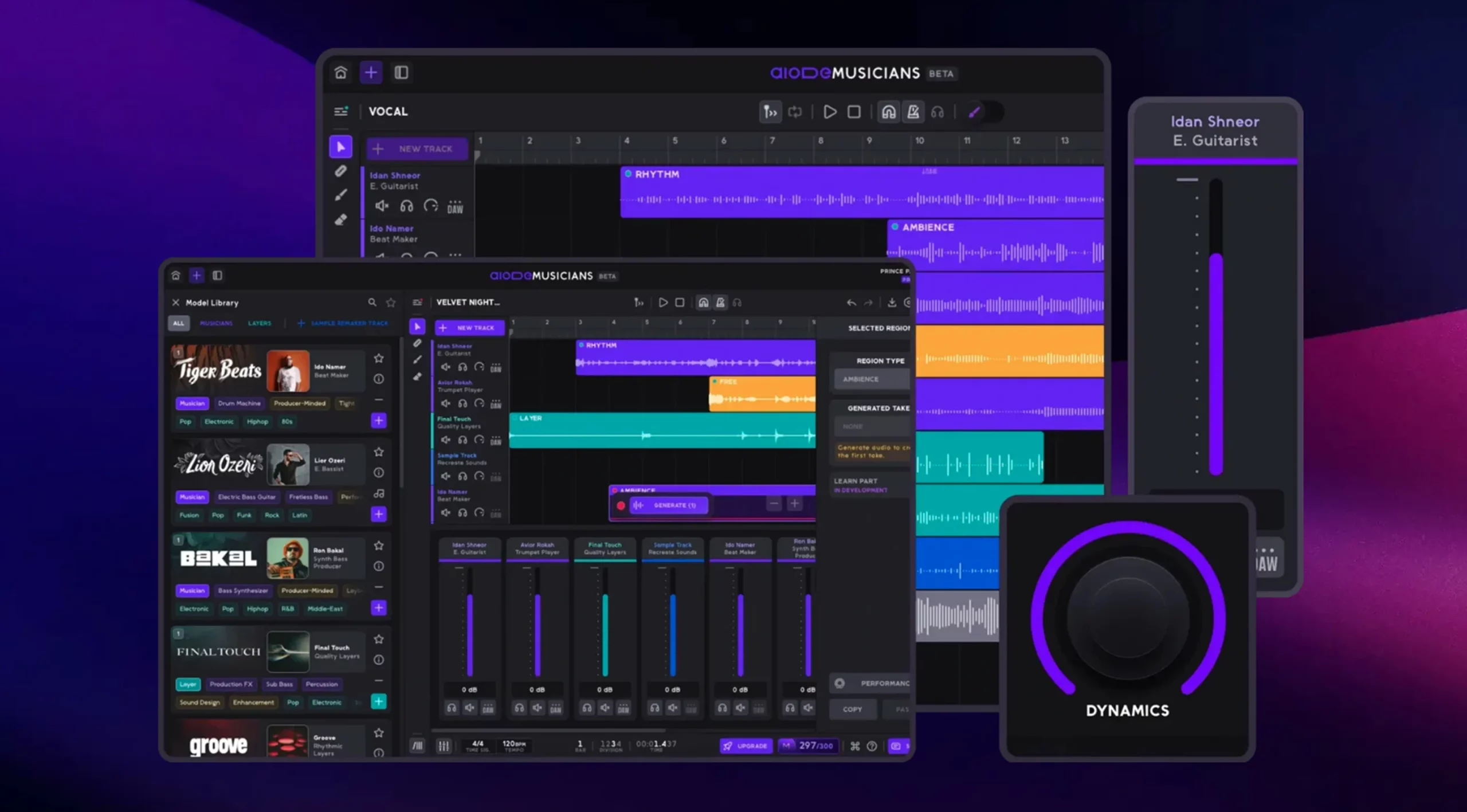
Getting started
This section contains a step-by-step breakdown of how to get started using Aiode.
Create an Account

Start by creating an Aiode account if you don’t already have one. Click the TRY NOW button located in the top-right corner of the website. This button appears on most pages, except for the Knowledge Base, so make sure you are not browsing that page when looking for it.
Since Aiode is currently in its Beta phase, clicking TRY NOW will direct you to a short form where you’ll answer a few questions and join the waiting list. After submitting the form, you will receive a confirmation email acknowledging that your request has been received.
Log in to Your Account
Once you get selected to join Aiode’s Beta phase you’ll receive another email with the good news! You can then log in to your account on Aiode using the LOG IN button at the top right of the pages.
Desktop App
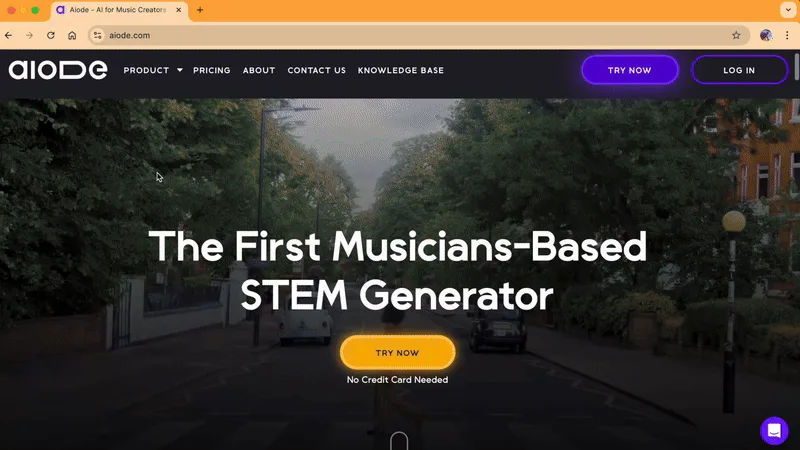
Aiode is one of the few platforms that offers a dedicated desktop application. You can download it by going to Product → Desktop App from the top navigation panel.
The Aiode Desktop App brings the full power of AI-driven music generation directly to your computer, making it easier to create, explore, and produce music. It mirrors the functionality of the web platform while offering seamless project syncing, allowing you to switch between the desktop app and your DAW without interrupting your workflow.
Designed with real studio use in mind, the desktop app delivers faster performance and tight DAW integration, including drag-and-drop export in high-quality 48kHz/24-bit audio. With a dedicated, distraction-free workspace and advanced AI capabilities, Aiode helps streamline your production process and unlock new creative possibilities across sampling, beat making, and full song creation.
Aiode Musicians / Dashboard
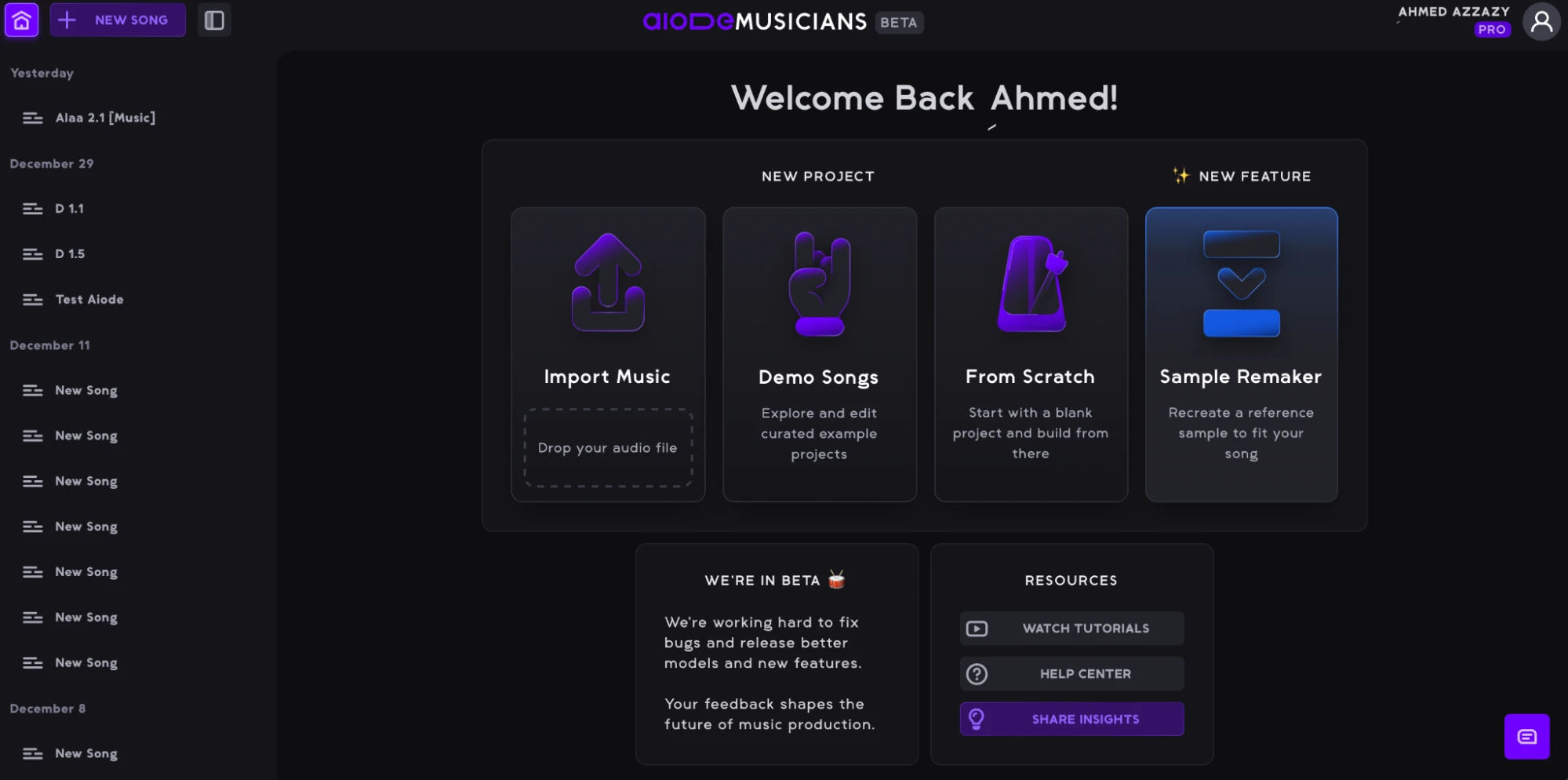
When you log in to your Aiode account you will be directed to the Aiode Musicians dashboard containing the core engine of Aiode. This page is your starting point whether you want to start a new project or carry on with a recent one. There are 4 options for starting a new project: Import Music, Demo Song, From Scratch, and Sample Remaker. The Resources panel has 3 buttons: WATCH TUTORIALS, HELP CENTER and SHARE INSIGHTS.
Start a New Project
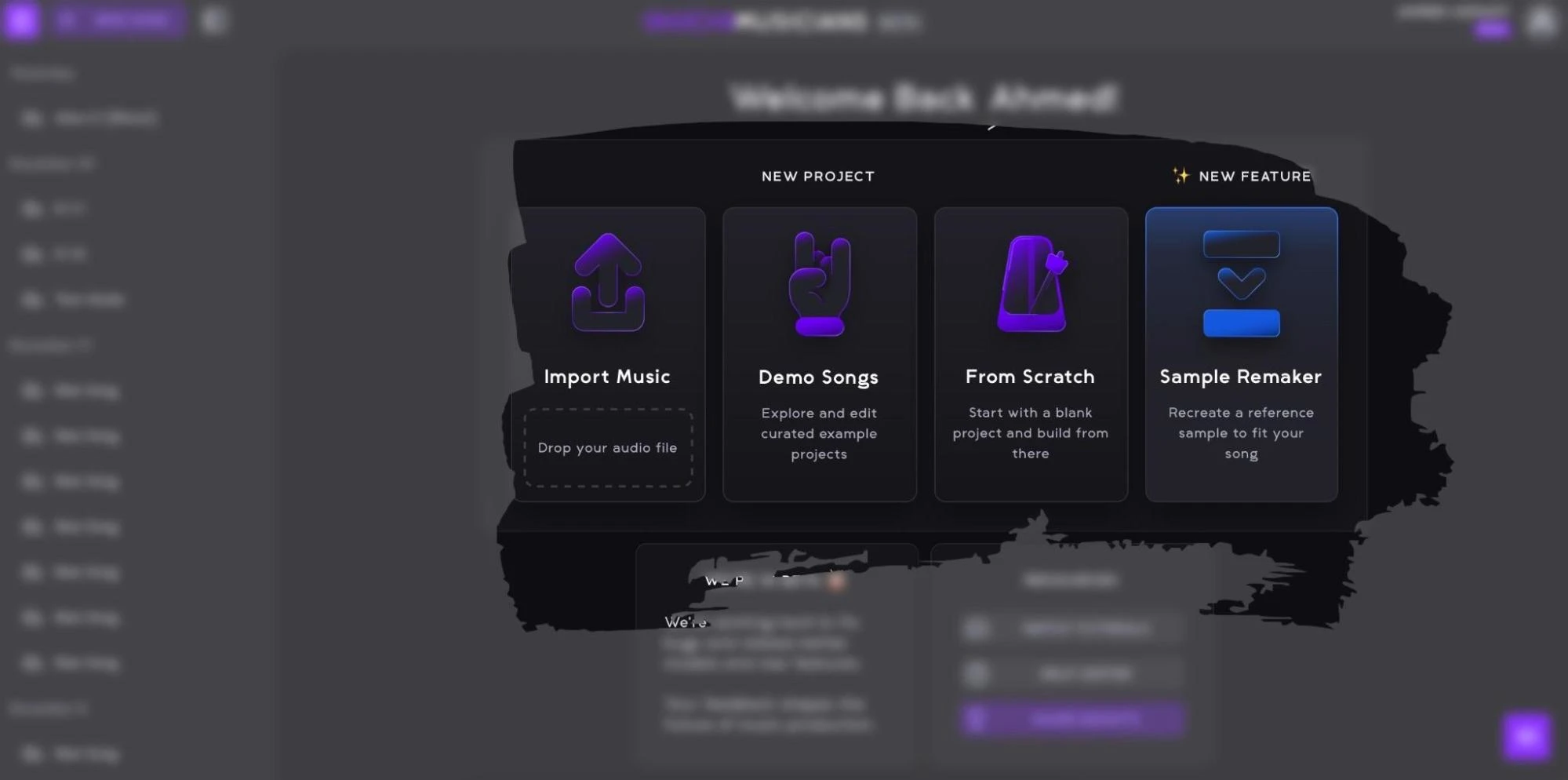
There are four options for starting a new project. Choose one of the following:
- Import Music: Upload an audio file and have Aiode analyze it and generate musical parts around it, helping you quickly build ideas from an existing track or loop.
- Demo Songs: Open curated example projects that you can explore, edit, and learn from while familiarizing yourself with Aiode’s workflow and features.
- From Scratch: Start with a completely empty project, giving you full control to build your composition from the ground up.
- Sample Remaker: Upload a reference sample, and Aiode will rebuild it into a brand-new sound that fits your track’s tempo, key, style, and energy. It generates original, high-quality, royalty-free variations that capture the feel of the reference while avoiding quality issues, mismatches, or copyright concerns.
Open a Recent Project
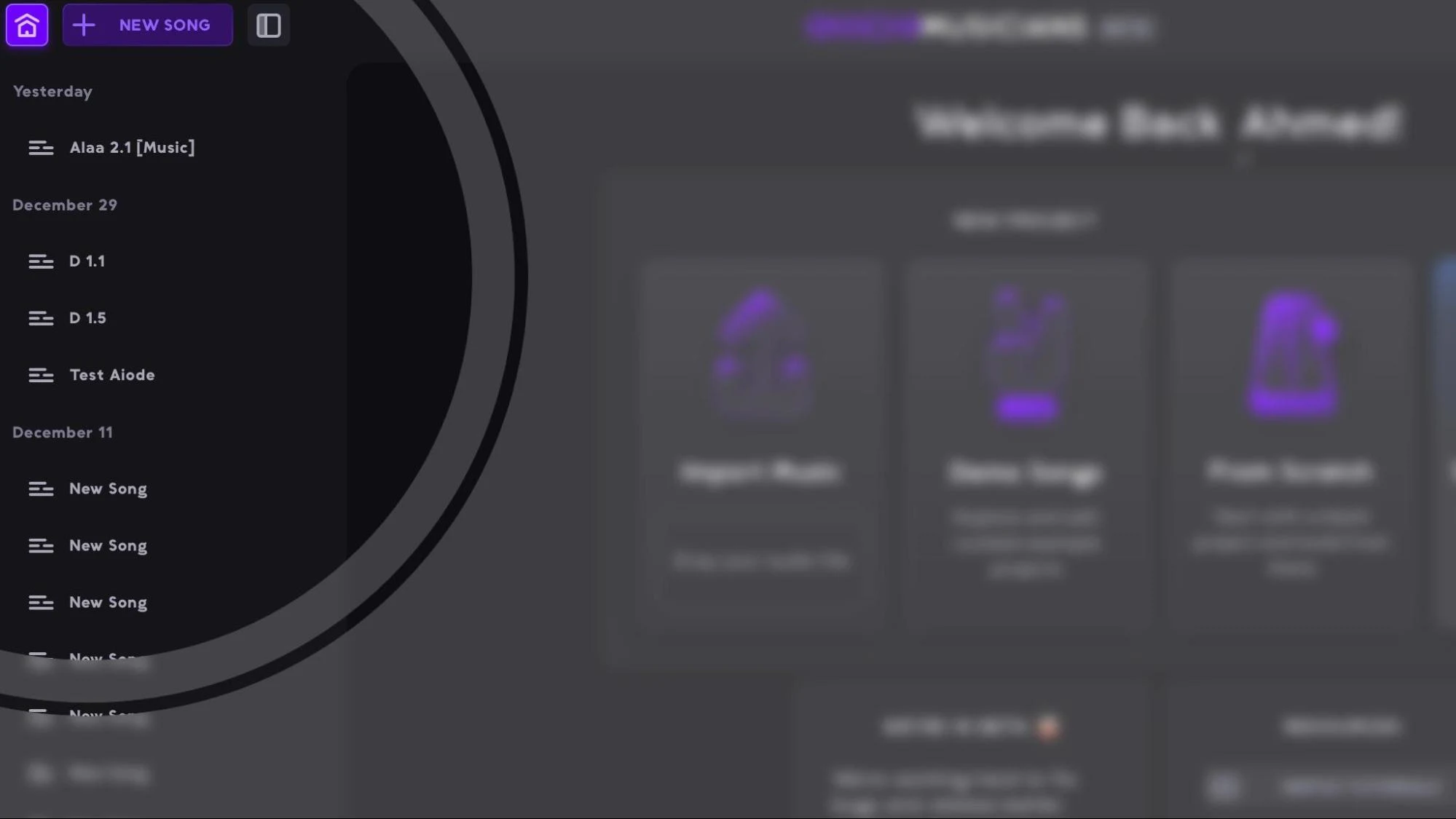
To open up a recent project use the Projects panel on the left of the Aiode Musicians Dashboard. You can use that panel at any time while working on your projects as it remains in your view even after you recall a project and start working on it. You can hide the Projects panel by clicking the Hide/Show Songs button or press (Shift + P).
Resources

The Resources panel includes 3 buttons: WATCH TUTORIALS directs you to Aiode’s Youtube channel with tutorial videos that take you on a tour around the different features and functions inside Aiode. The HELP CENTER leads to handy articles to assist you with any questions that you might have. SHARE INSIGHTS connects you with the Aiode support team at all times.
Upload Your Music

Once you have created a new project, the first step is to upload your music to the project. Aiode accepts MP3 or WAV files of any length, as long as the file size is under 150 MB.
Your upload can be almost any type of musical idea. It could be a melodic vocal recording, a drum groove, a chord progression, or even your own voice humming a melody. After the file is uploaded, Aiode analyzes the audio and begins building new instrumental layers around it, performed by its AI-powered virtual musicians.
This flexibility allows you to start from any creative seed, whether it’s a rough idea, a musical sketch, or a polished recording, and quickly expand it into a fuller production.
Song Properties

Once your music is uploaded, preview the track to ensure it sounds as intended, then set the song’s time signature and BPM to match its original tempo and structure accurately.
The Composition Page
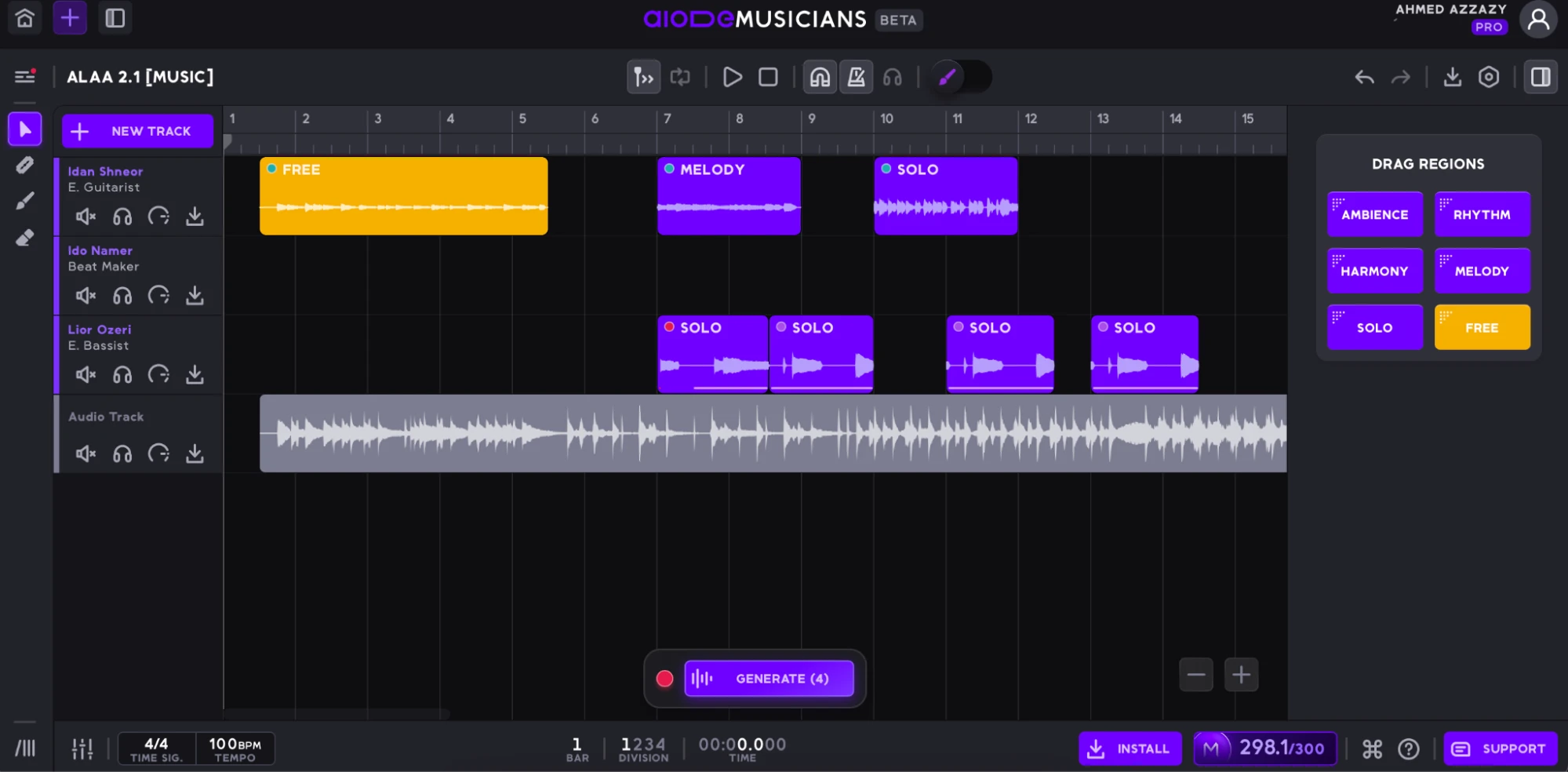
The Composition Page in Aiode is your main workspace for creating, arranging, and shaping music. Here, you can upload audio, set tempo and time signature, and build tracks with AI-powered virtual musicians. It includes key tools like the Mixer, Library, playback controls, metronome, snapping, and zoom, as well as region creation, multiple takes, and performance editing. With features for assigning musical roles, generating variations, and exporting in various formats, including direct DAW drag-and-drop, it centralizes your entire music production workflow in one flexible, studio-ready space.
Time Ruler
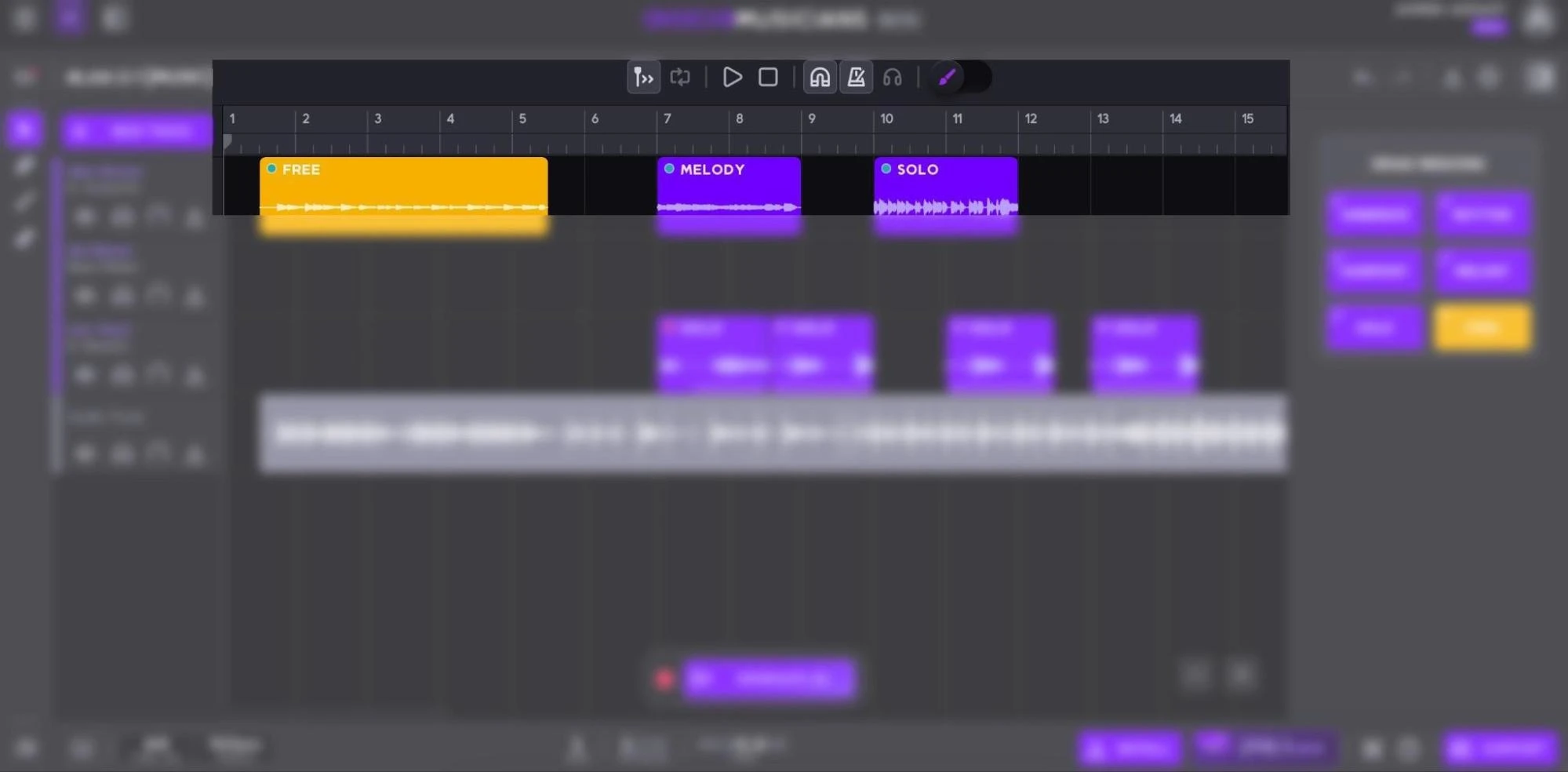
The Time Ruler is located at the top of the Composition page and under the top control panel. The ruler displays the bar and divisions counting of the different sections of the projects, similar to Digital Audio Workstations (DAWs).
Auto Scroll [A]
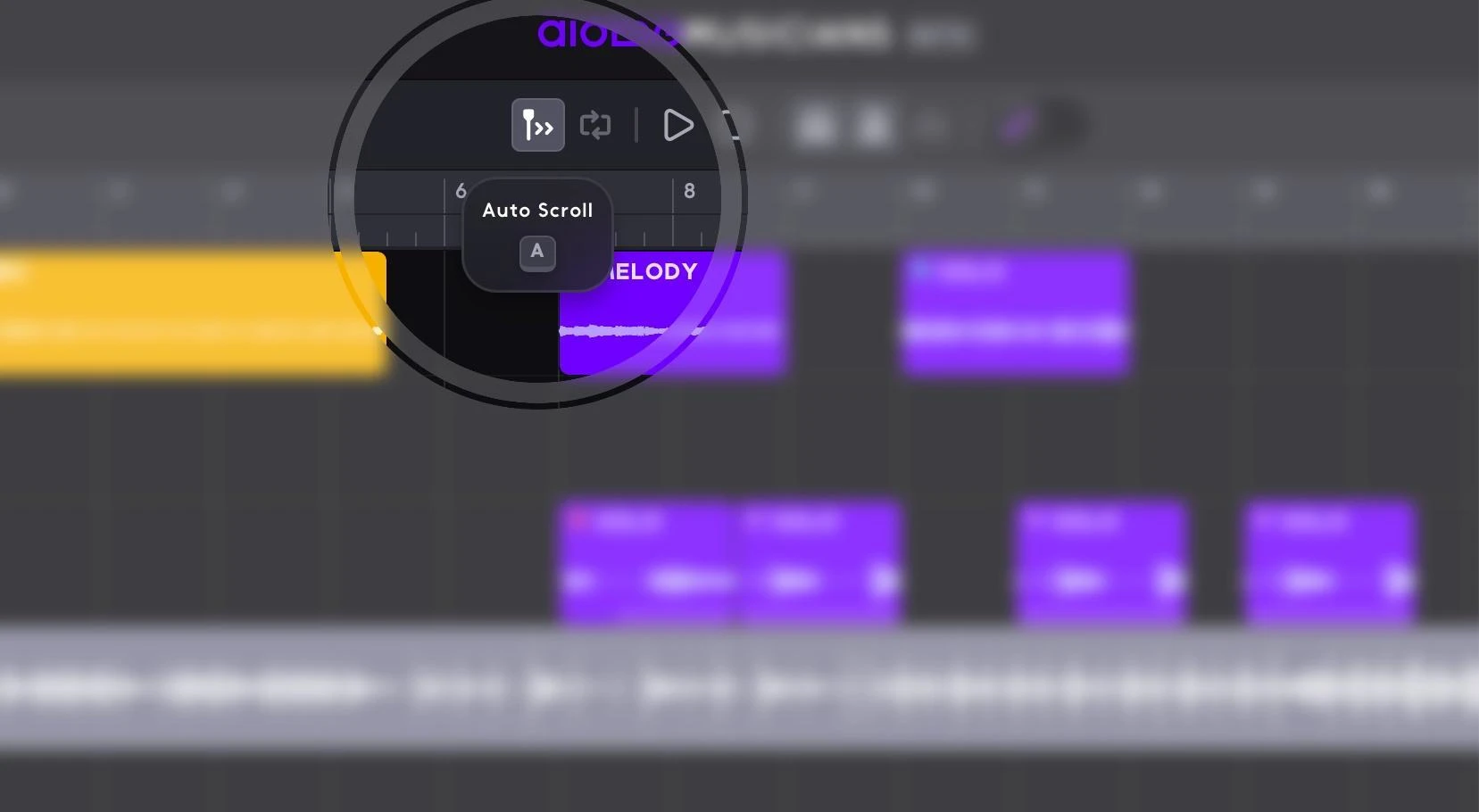
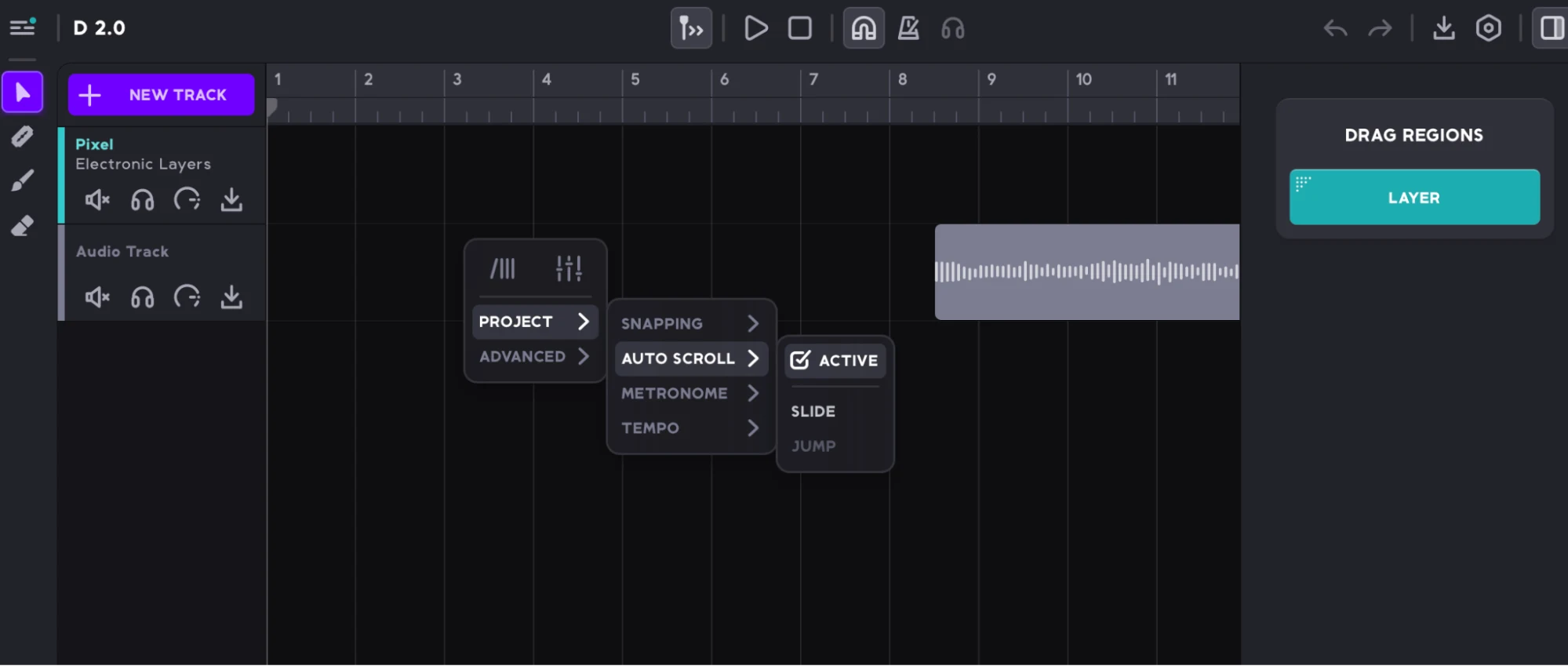
This button with a cursor and two arrows icon at the top panel of the Composition page lets you decide the scrolling nature of the preview. When activated the display will scroll automatically during playback to keep the currently playing song position visible. You can also engage this feature from the right-click drop. From there you can also choose between Slide for smooth and continuous auto-scrolling or Jump page-turning style of scrolling.
Snap To Beats (Snapping) [N]

The Magnet button located in the top panel of the Composition page controls how regions move along the timeline. When the magnet is enabled, regions snap to beat increments as you drag them, helping you align clips precisely with the project’s timing. In most cases, each bar contains four beats, so regions will move in steps that follow this rhythmic grid. When the magnet is disabled, regions can be moved freely without snapping, allowing for more precise or off-grid placement.
You can also toggle this feature from the right-click dropdown menu by navigating to Right-click → Project → Snapping. This provides another quick way to enable or disable snapping while working in the composition workspace.

Metronome [K]
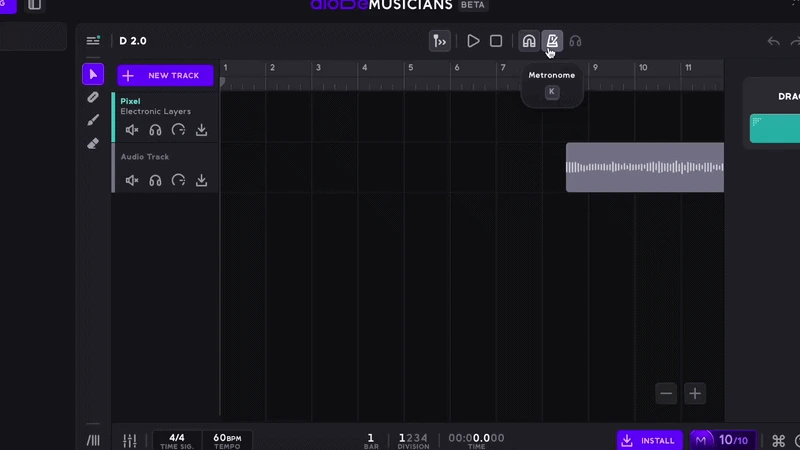
The Metronome can be enabled either by clicking the metronome icon in the top panel of the Composition or by right-clicking anywhere in the composition workspace and selecting it from the dropdown menu. When activated, the metronome plays a steady click that follows the tempo of the current project, helping you keep time while recording, editing, or arranging your track.
The right-click dropdown menu also provides several settings that allow you to customize how the metronome sounds and behaves:
- Pitch: Sets the tone of the metronome click. Options include High, Mid, or Low, allowing you to choose a sound that stands out clearly in your mix.
- Volume: Adjusts the loudness of the metronome, with options for Loud, Medium, or Soft depending on how prominent you want the click to be during playback.
- Divisions: Controls how the metronome counts time by defining the bars, beats, and subdivisions it emphasizes, helping you follow the rhythmic structure of the project more precisely.
These options allow you to tailor the metronome to your workflow, making it easier to stay synchronized with the timing and rhythm of your composition.
Playback Controls
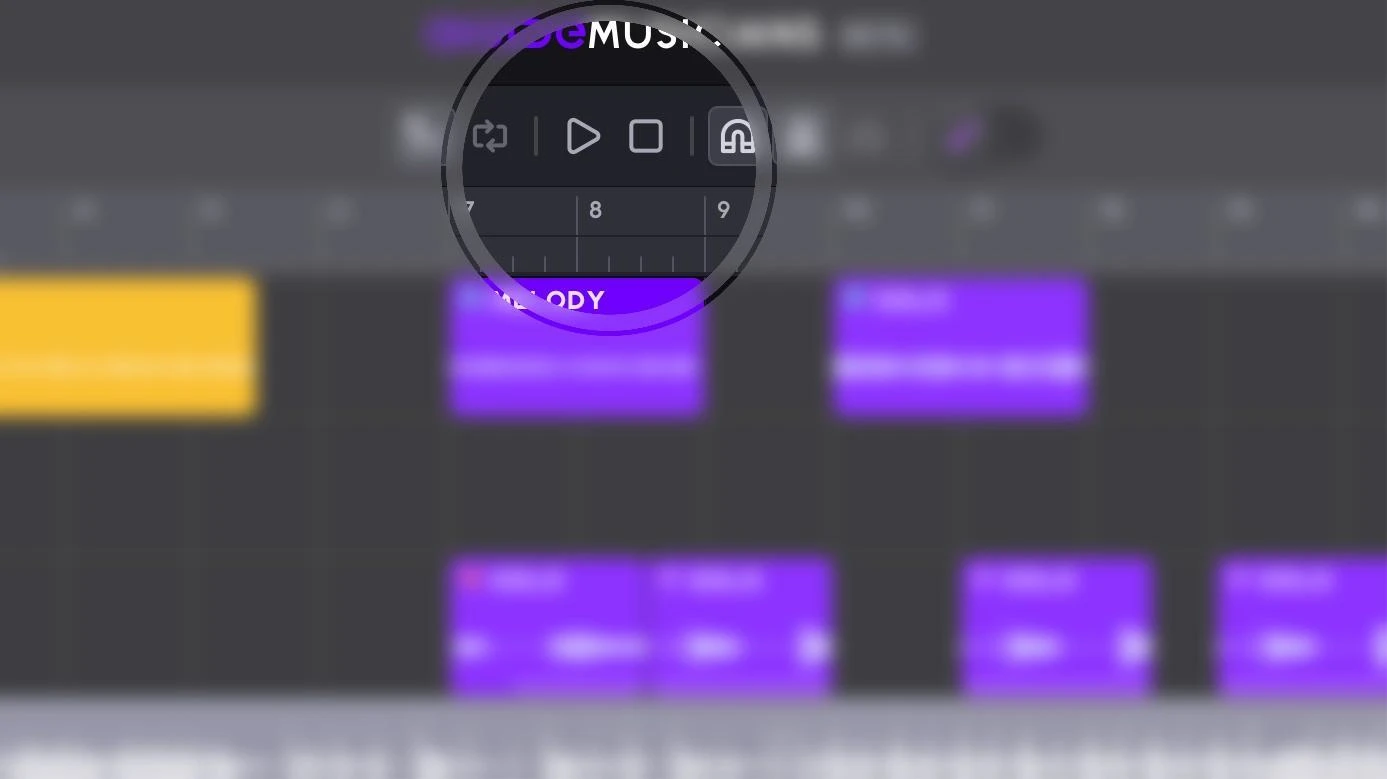
Located to the right of the top panel of the Composition page are the project’s playback controls. There are three buttons: Play/Pause [Spacebar], Stop [Enter], and Repeat. Like any Digital Audio Workstation (DAW) you can press the Spacebar on your keyboard to trigger the Play/Pause button and press the Return key to trigger the Stop button. The Stop button moves the playing head to the beginning of the project.
Editing Tools
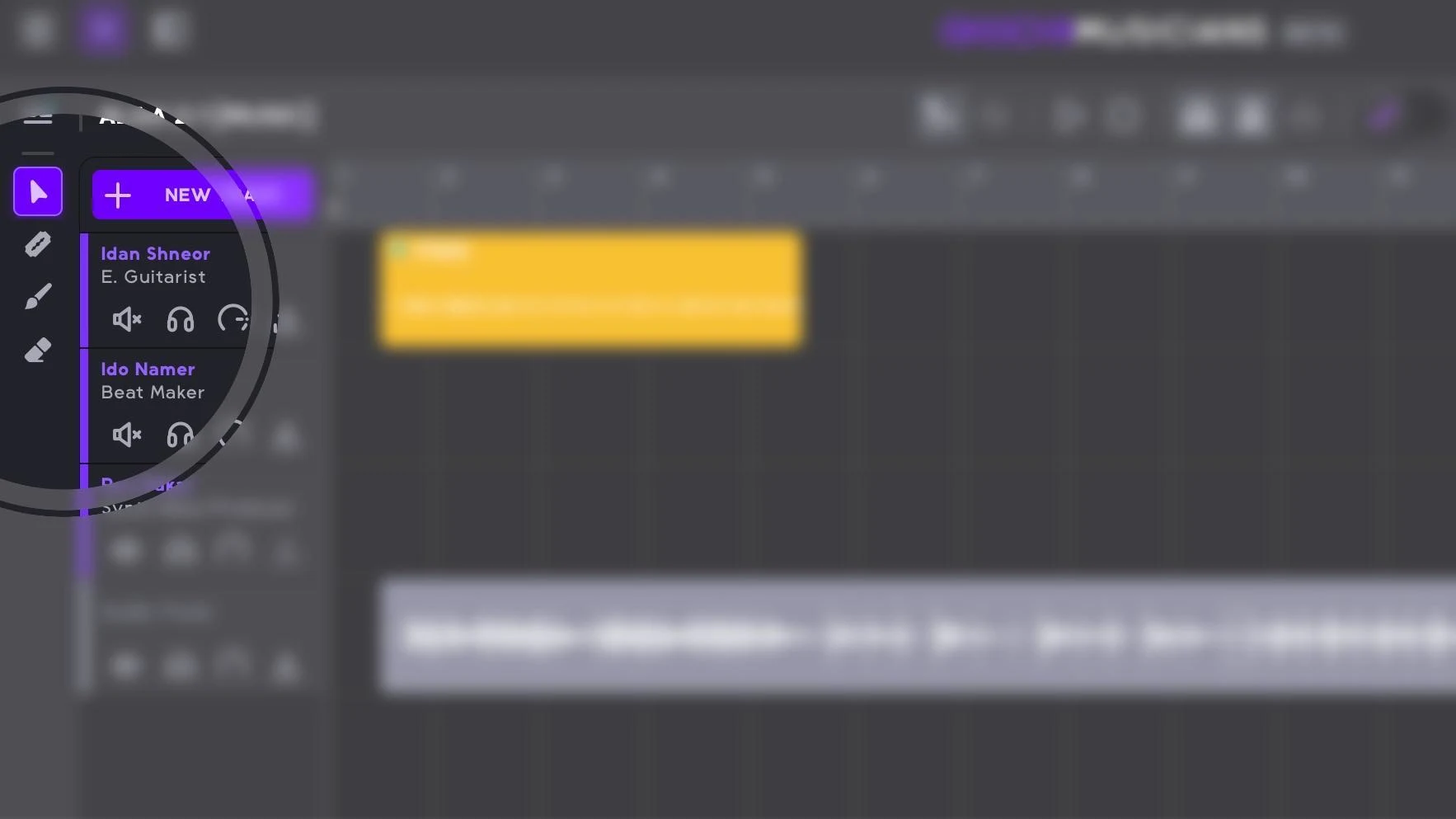
Editing tools give you full control over how your song is created, shaped, and refined inside Aiode. All main editing tools are located on the left side of the Composition page and are designed to support both detailed edits and fast idea generation.
At the core of this workflow is Generate Mode [G], which is seamlessly integrated into the editing toolset. When Generate Mode is activated, your cursor defaults to the Brush tool, allowing you to draw regions directly on the grid where you want new musical takes to be generated. You can also use the Generation Eraser [Option/ALT] to remove regions in a clean, non-destructive way. After marking all the desired regions, simply click Generate Takes and let Aiode generate new musical content for those sections.
Alongside Generate Mode, Aiode includes essential editing tools for precise control:
- Normal Pointer [V]: drag, move, and arrange regions
- Razor Tool [E]: make accurate cuts and edits
- Generation Mode Brush [G]: quickly sketch and generate new ideas
- Generation Eraser [Option/ALT]: remove generated regions without affecting the rest of the arrangement
Together, these editing tools create a flexible workflow that allows you to move effortlessly between creative exploration and detailed arrangement editing.
Undo/Redo
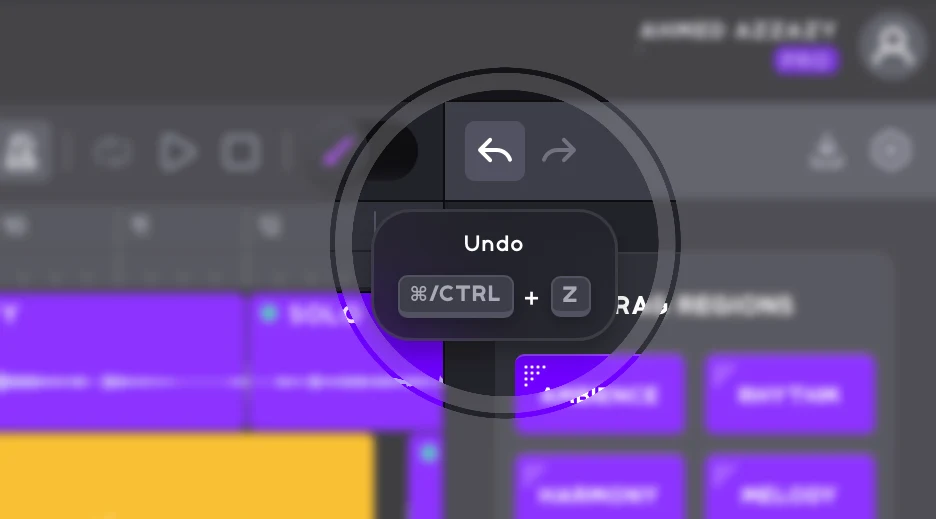
If you want to undo an operation, click the Undo button located at the top right of the Composition page.
You can also use the standard keyboard shortcuts:
- Command / CTRL + Z: Undo the last action
- Shift + Command / CTRL + Z: Redo an action
These shortcuts allow you to quickly step backward or forward through your recent edits while working on your project.
Export [D/9]
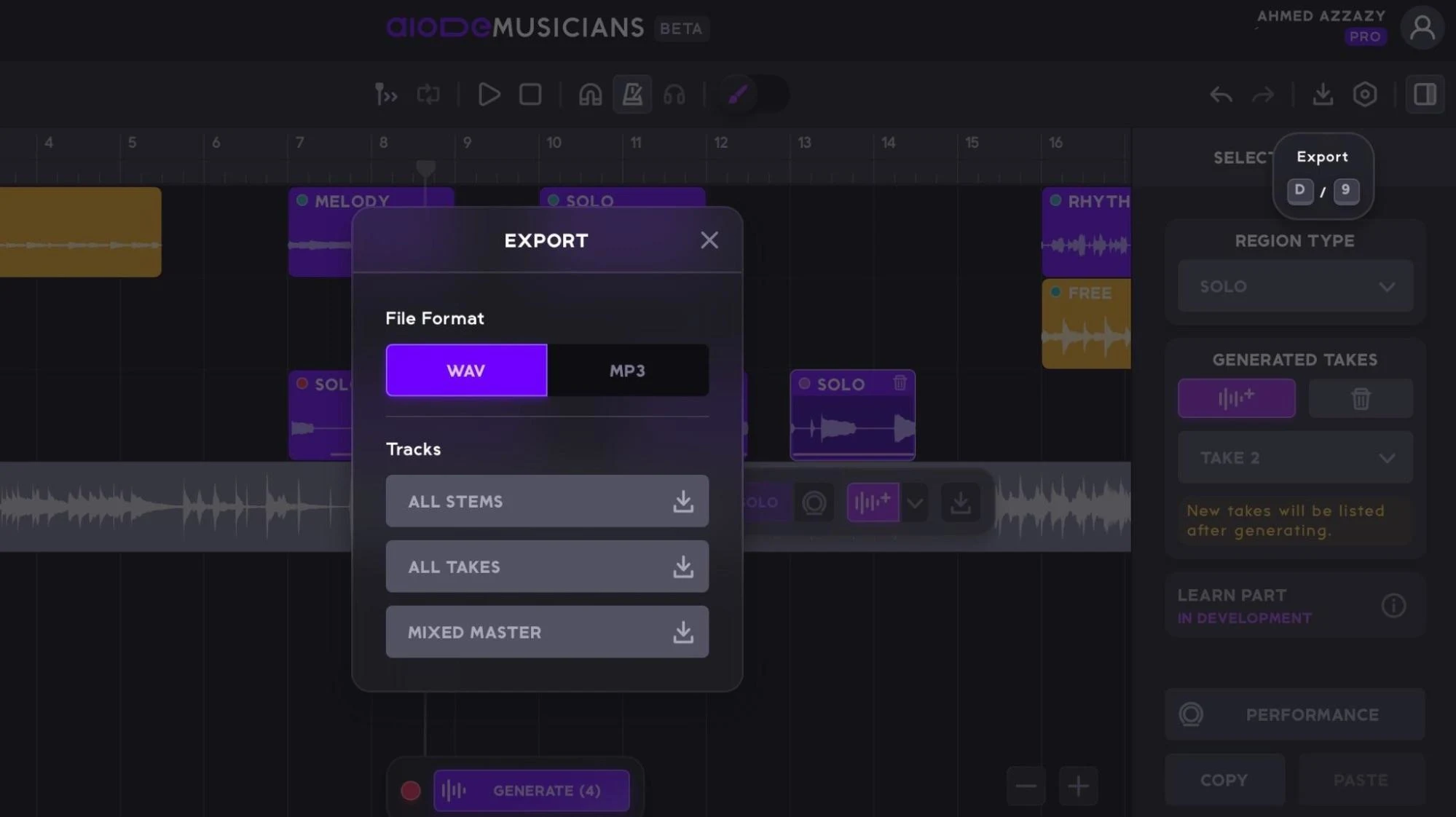
The Export button in the top-right corner of the Composition page opens the Export popup, where you can render and download your project in either WAV or MP3 format, depending on your quality and file-size needs. Aiode offers three export options, each suited to a different stage of your workflow:
- ALL STEMS
This option exports every track in your project as a separate audio file. It’s ideal for detailed mixing, collaboration with other producers or engineers, or importing your project into a DAW for further processing. Each stem remains perfectly time-aligned, giving you full flexibility in post-production. - ALL TAKES
This option exports all individual takes generated within your project, including alternative performances and variations. It’s especially useful for sound selection, creative experimentation, or archiving ideas so you can revisit and reuse specific takes in other projects. - MIXED MASTER
This option exports a single audio file containing the full song as you hear it in the session, with all tracks, levels, and processing applied. It’s best for sharing demos, reviewing final arrangements, or delivering a ready-to-play version of your track.
DAW drag-and-drop (In The Desktop App)
Another way to export is through the drag-and-drop feature in the desktop app. You can drag audio directly into your DAW from multiple locations, including track headers, region headers, and the Export popup, giving you flexible control over where your audio goes.

This workflow lets you instantly move generated regions into Ableton Live, FL Studio, Logic, Pro Tools, and other DAWs in pristine 48kHz/24-bit quality, all without exporting files or interrupting your creative flow. Whether you’re testing ideas or committing parts to a full arrangement, drag-and-drop keeps your process smooth, intuitive, and studio-ready.
Project Settings [S/0]
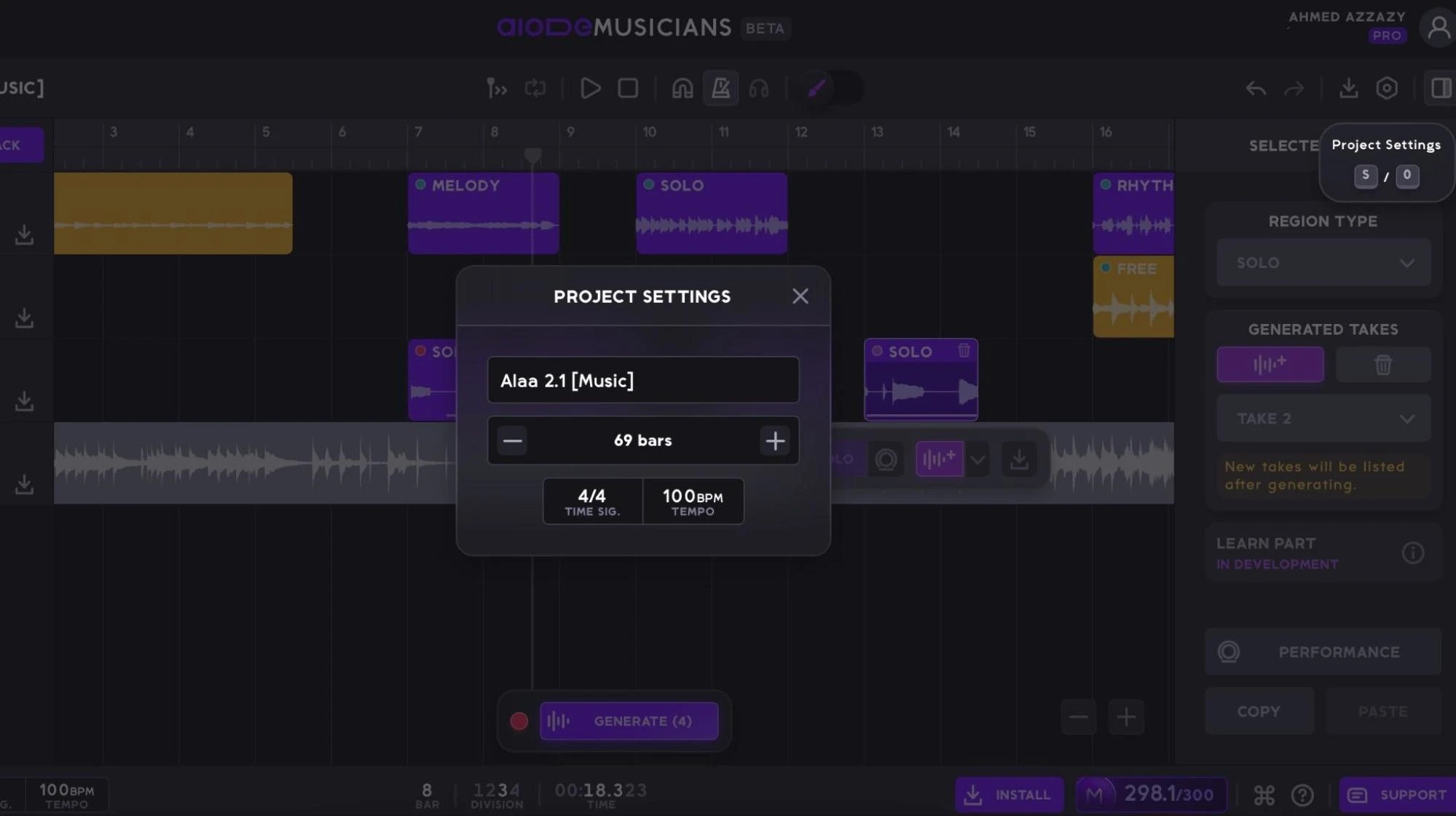
At the top right of the Composition page is the settings button with a gear icon. You can also press the letter S or the number 0 on your keyboard to access the settings tab. Settings let you edit the song’s name, length, time signature, and tempo.
Create a New Region
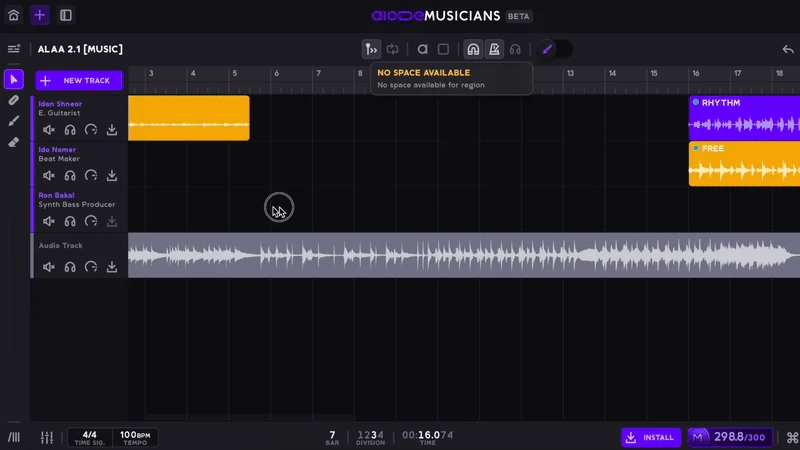
To generate takes from musicians, start by selecting the sections of your song where you want them to perform. This is done by creating regions, simply drag over a section within a musician’s track. Regions can now last up to a full minute.
Once a region is created, you can move it along the timeline to cover different sections, for example from bar 2 to bar 10, by clicking and dragging it left or right. You can also adjust its length by dragging either end inward or outward. This flexibility allows a single region to span multiple parts of your track, such as verses, choruses, or bridges, creating a continuous, seamless performance.
Region Controls
Aiode’s region editing tools are designed to make arranging and refining your music fast, flexible, and non-destructive. Whether you’re experimenting with song structure or making precise adjustments, these tools give you full control over how regions behave on the Composition page. Here are the controls in detail:
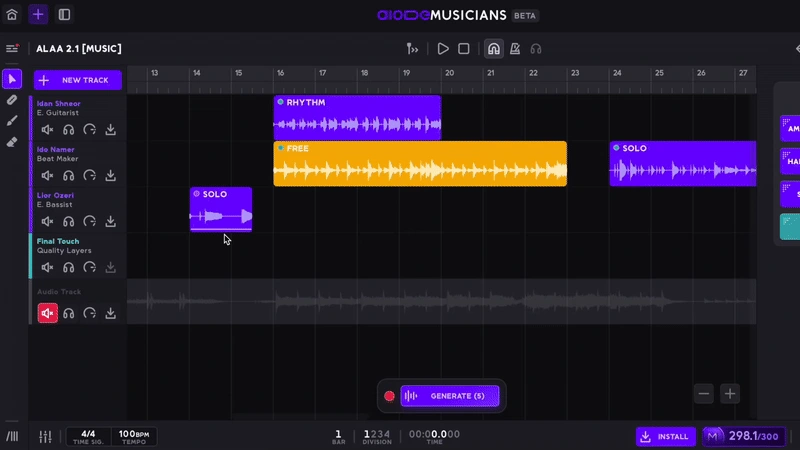
Drag and Drop Regions
Easily rearrange your song by moving regions anywhere on the Composition page. Simply click and hold a region, then drag it to a new position on the timeline to quickly experiment with structure, timing, and arrangement.
Duplicate Regions
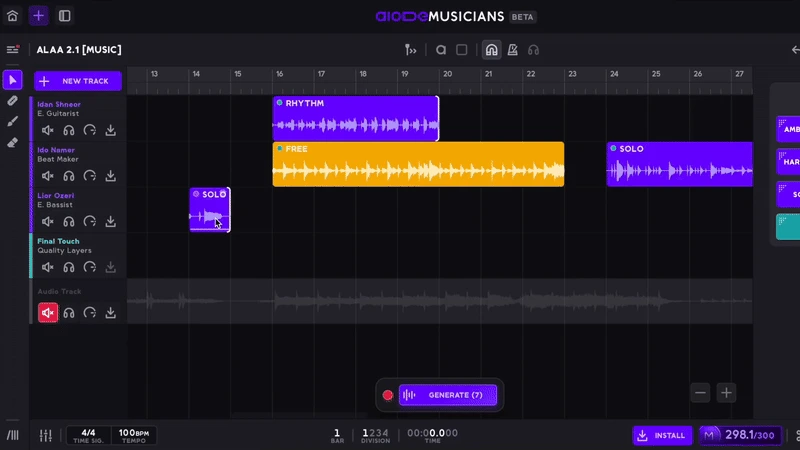
Create copies of regions instantly by holding Alt/Option while dragging a region along the timeline. This is perfect for repeating sections, building song structures faster, or trying variations without recreating content from scratch.
Split Regions
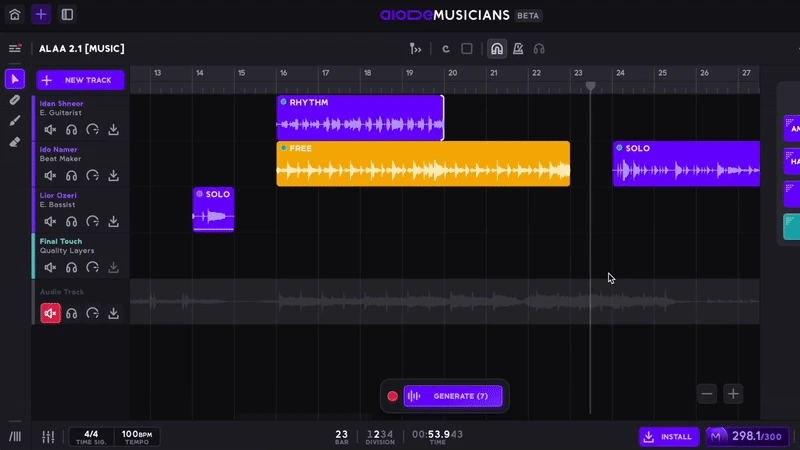
Cut regions precisely at the playhead position using Cmd/Ctrl + E. This allows you to isolate specific sections, make detailed edits, or prepare parts of a region for regeneration or rearrangement.
Trim and Extend Regions

Adjust the length of any region from either side by hovering over its edge and dragging inward to trim or outward to extend. This makes it easy to fine-tune timing, tighten transitions, or give sections more room to breathe.
Overlap Regions

Extend regions even when another region is directly next to them. Instead of deleting content, regions can now overlap, preserving the full audio of the overlapped region. This non-destructive behavior allows for more flexible editing and safer experimentation when shaping your arrangement.
Delete a region
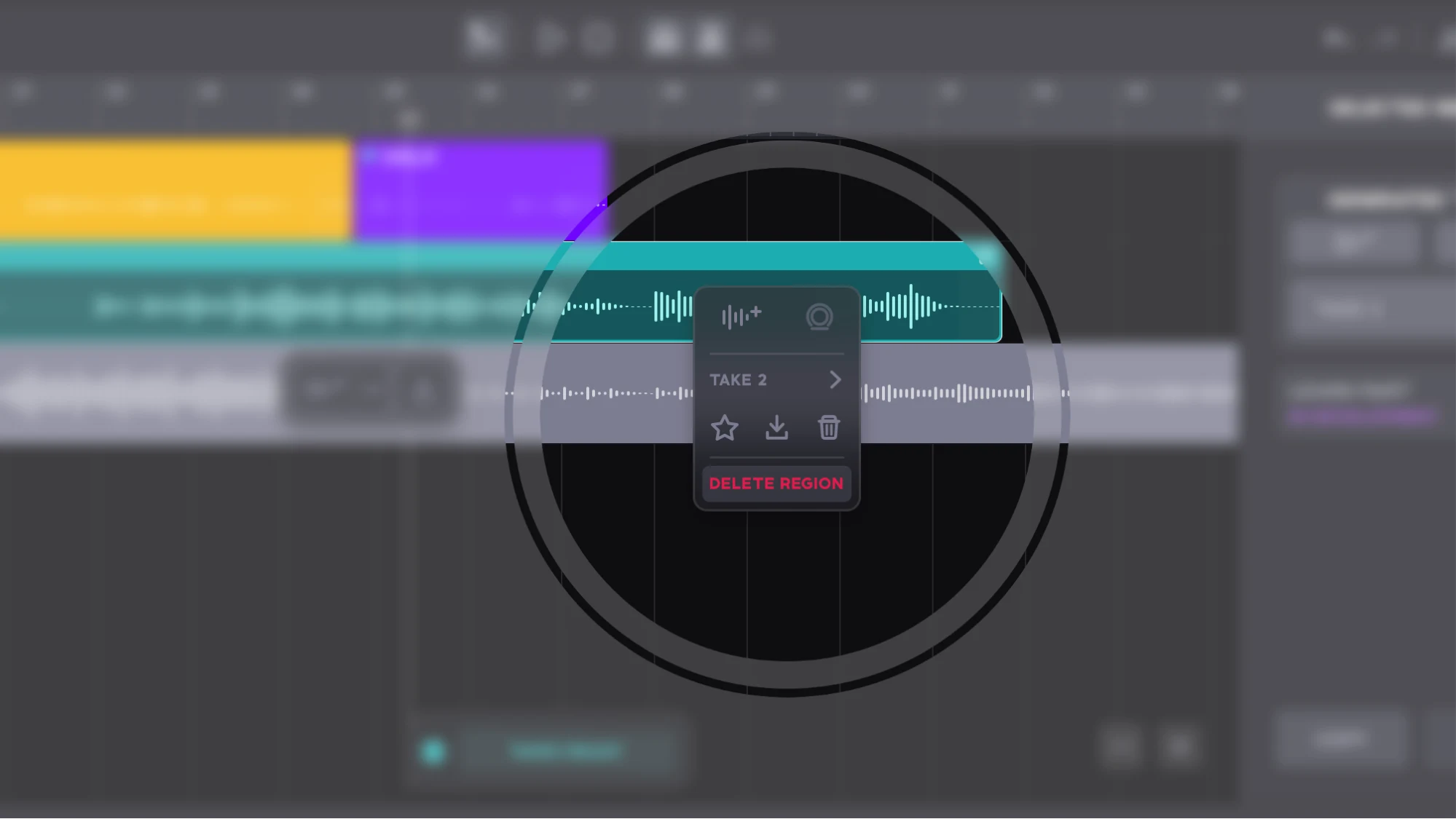
Delete regions from the right-click dropdown menu.
Assign Musical Roles to Regions
In Aiode, assigning a musical role to a region is flexible and designed to fit naturally into your workflow. Here are 3 ways you can assign musical roles to regions:
1. Create a region on the timeline
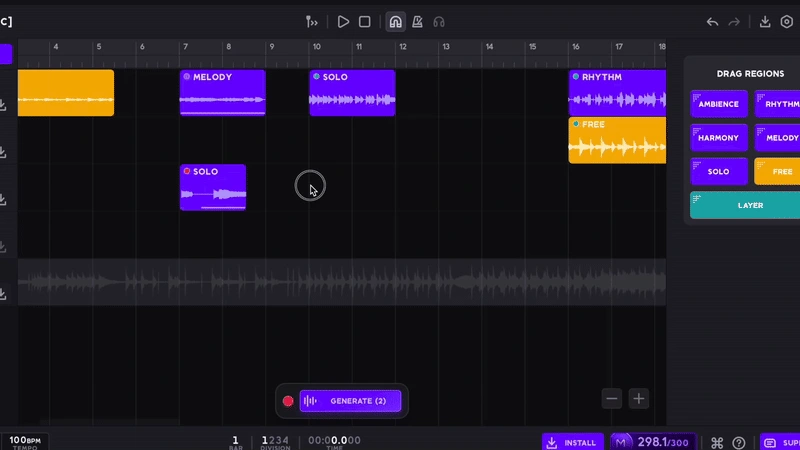
Drag on the timeline to create a new region, and a pop-up will appear immediately allowing you to select the musical role before generation.
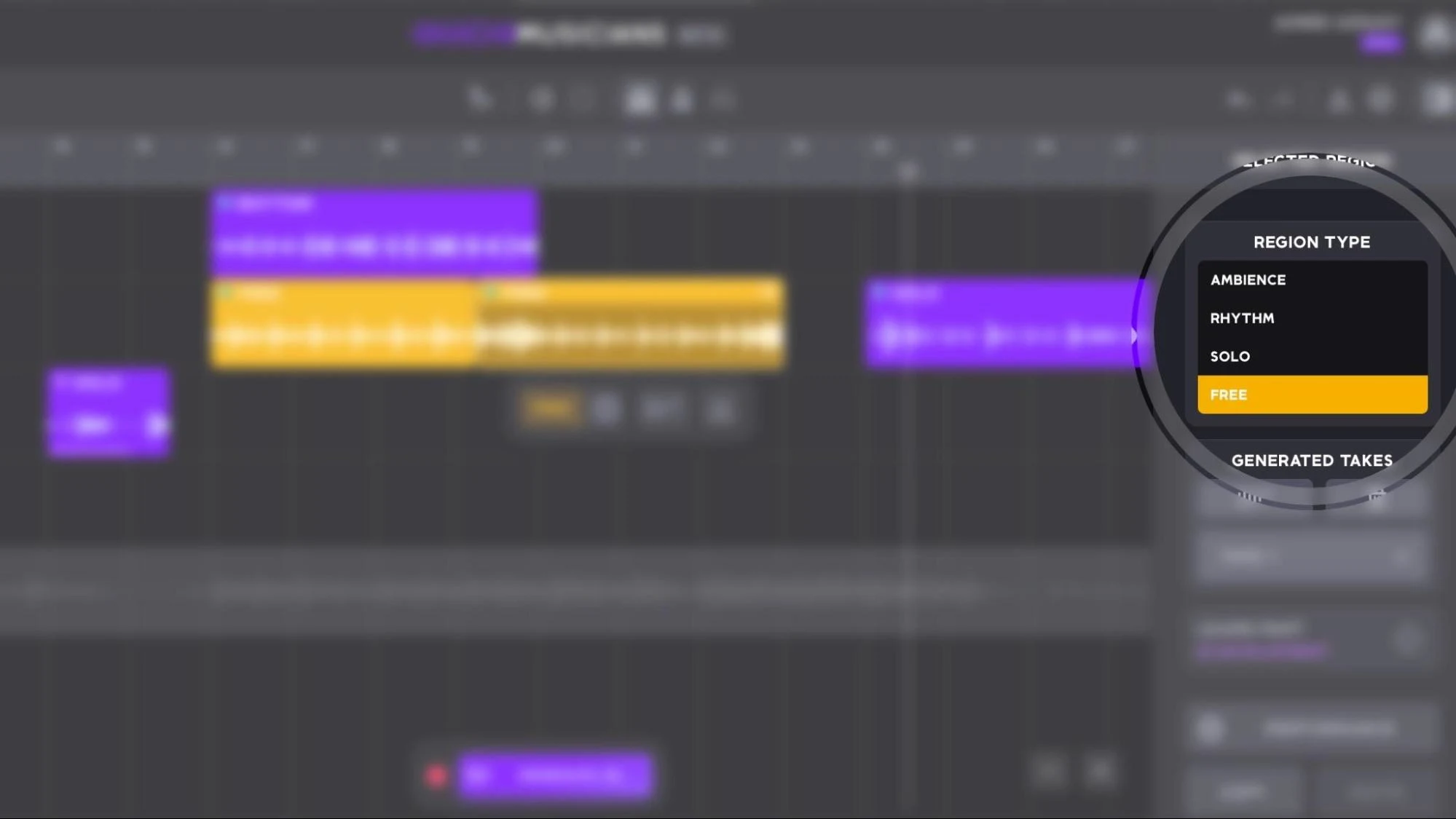
2. Assign or change roles from the sidebar:
Use the sidebar on the right side of the Composition Page to choose or modify a region’s musical role at any time, making it easy to experiment without rebuilding regions.
3. Drag roles directly into the timeline:
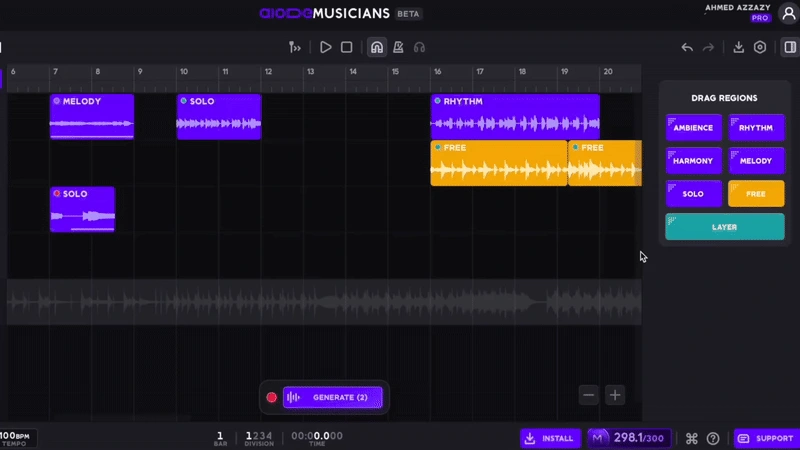
Drag a musical role from the sidebar onto the timeline to automatically create and arm a new region, ready for generation. You can then freely extend or shorten the region’s length to fit your arrangement, making it ideal for quickly sketching ideas and building song structures.
Region Controls
What are the region controls and what do they sound like:
- Ambiance – background layer that sets the tone
- Rhythm – groovy performance to drive the beat
- Chords – adds harmony and shape to the song
- Melody – emotional and precise performance
- Solo – an impressive solo to capture ears
- Free – could be any of the above or a fusion of them
Make use of the region controls when you’re creating new music for your song.
Multiple Takes Per Region
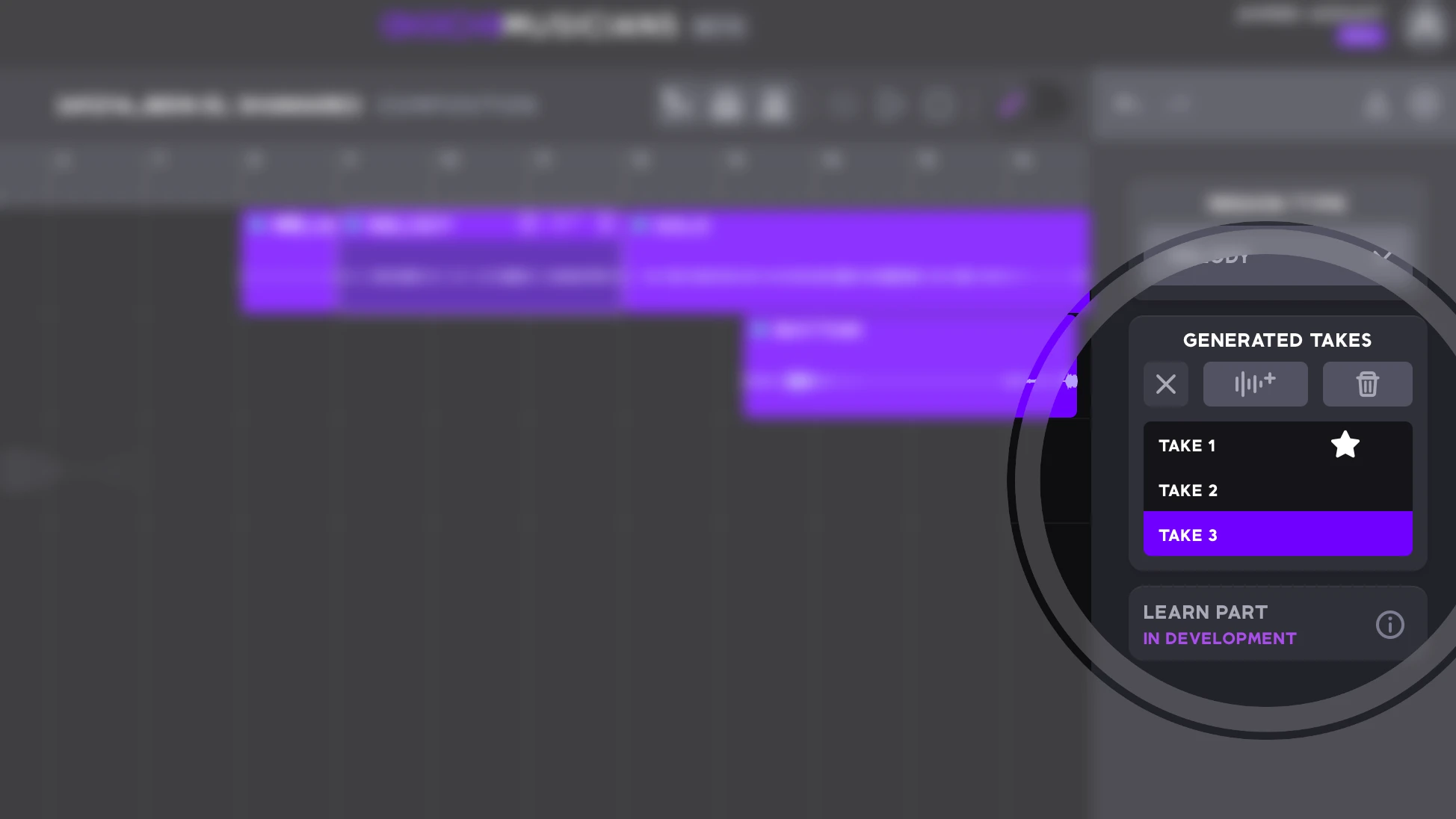
Aiode’s engine lets you generate up to 20 takes per region, giving you plenty of creative options. All takes appear in the Generated Takes panel on the right, where you can preview, rename, favorite, or star your preferred versions from the right-click dropdown menu for easy access. This makes it simple to compare ideas and quickly return to the best takes for your track. To create a new take, click Queue New Take in the panel, then press the global Generate button. Aiode will generate new takes for all queued regions at once, streamlining your workflow across multiple sections.
Track Controls
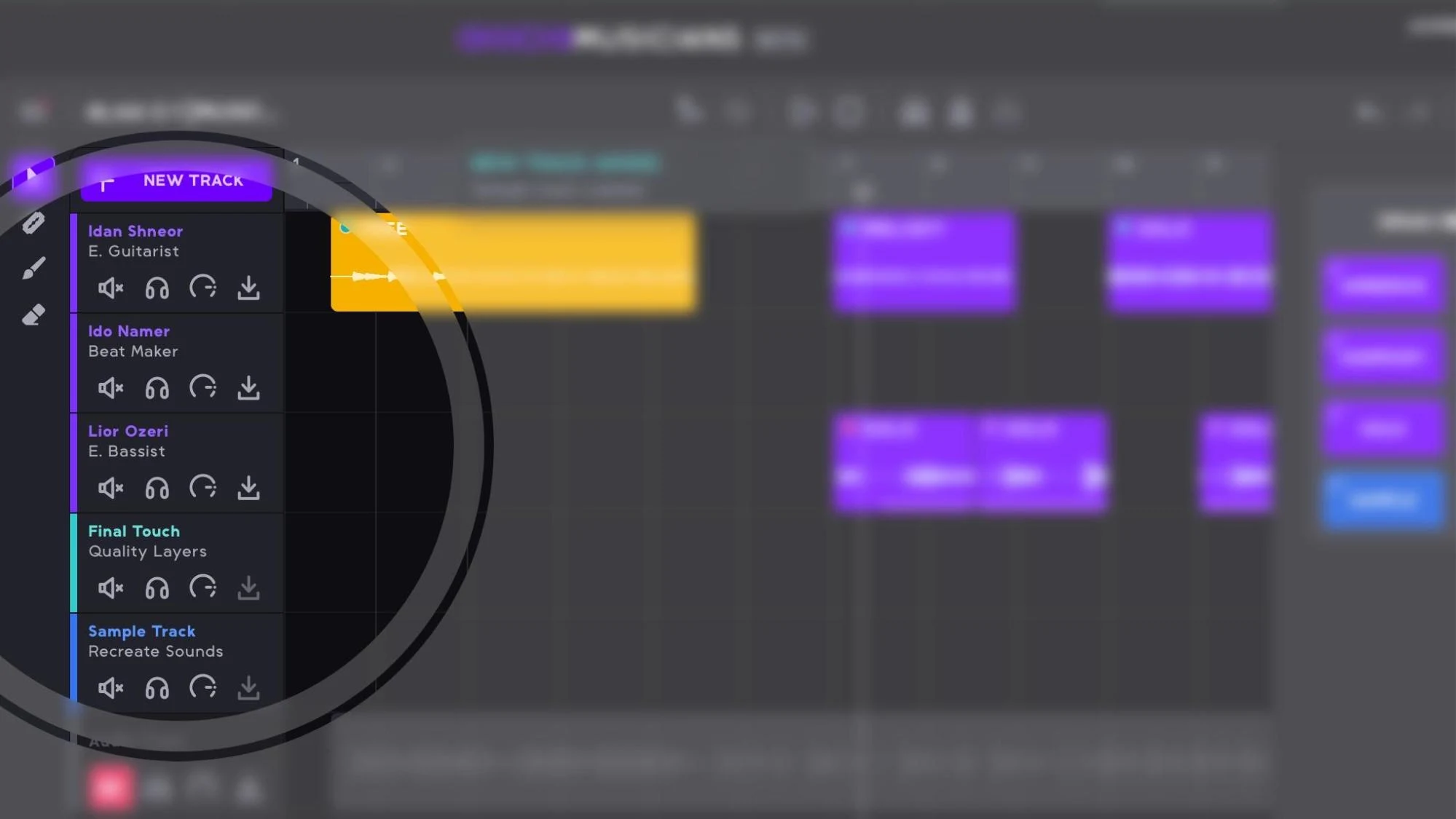
The header of each track on the Composition page, located to the left of the grid, provides key controls for managing individual tracks. The available controls include:
- Mute: Silences the track while leaving others audible.
- Solo: Plays only the selected track, muting all others.
- Adjust Volume: Drag to change the track’s volume, ranging from -48dB to 0dB.
- Download Track Audio: Export the entire track as a WAV file, including sections without regions.
Account Settings/Sign Out
At the top right of the Composition page is your account settings. Click on your name and/or the avatar icon to choose ACCOUNT SETTINGS or SIGN OUT. ACCOUNT SETTINGS opens a pop-up window that lets you change your name and email and choose your email preferences.
Generate Takes
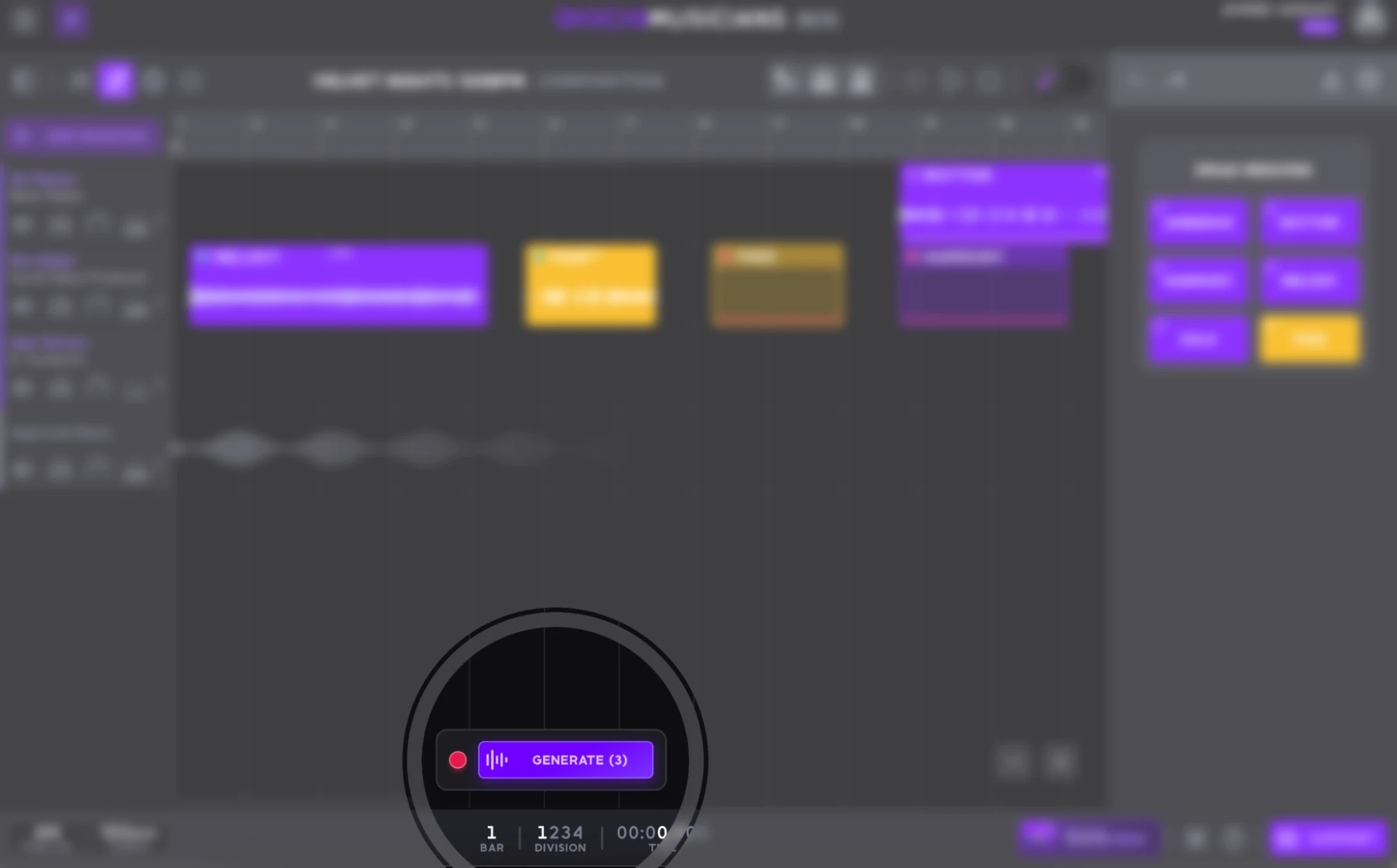
After creating regions, you can generate takes for them. Each region plays one take at a time, but you can create unlimited takes as long as you have enough Muses. To generate, click the Generate button at the bottom center of the Composition page. All new regions and queued regions will be processed in seconds by Aiode’s virtual musicians.
If a take isn’t right, you can replace it by hovering over the region’s top-right corner and clicking Queue New Take. You can even queue additional takes while generation is in progress, keeping your creative flow uninterrupted and allowing you to quickly find the performance that fits your track.
Zoom In/Out [+/-]
Use the buttons with plus (+) and minus (-) icons to zoom in and out of the project’s preview. They are located at the bottom right of the Composition page.
Project Time Signature and Tempo
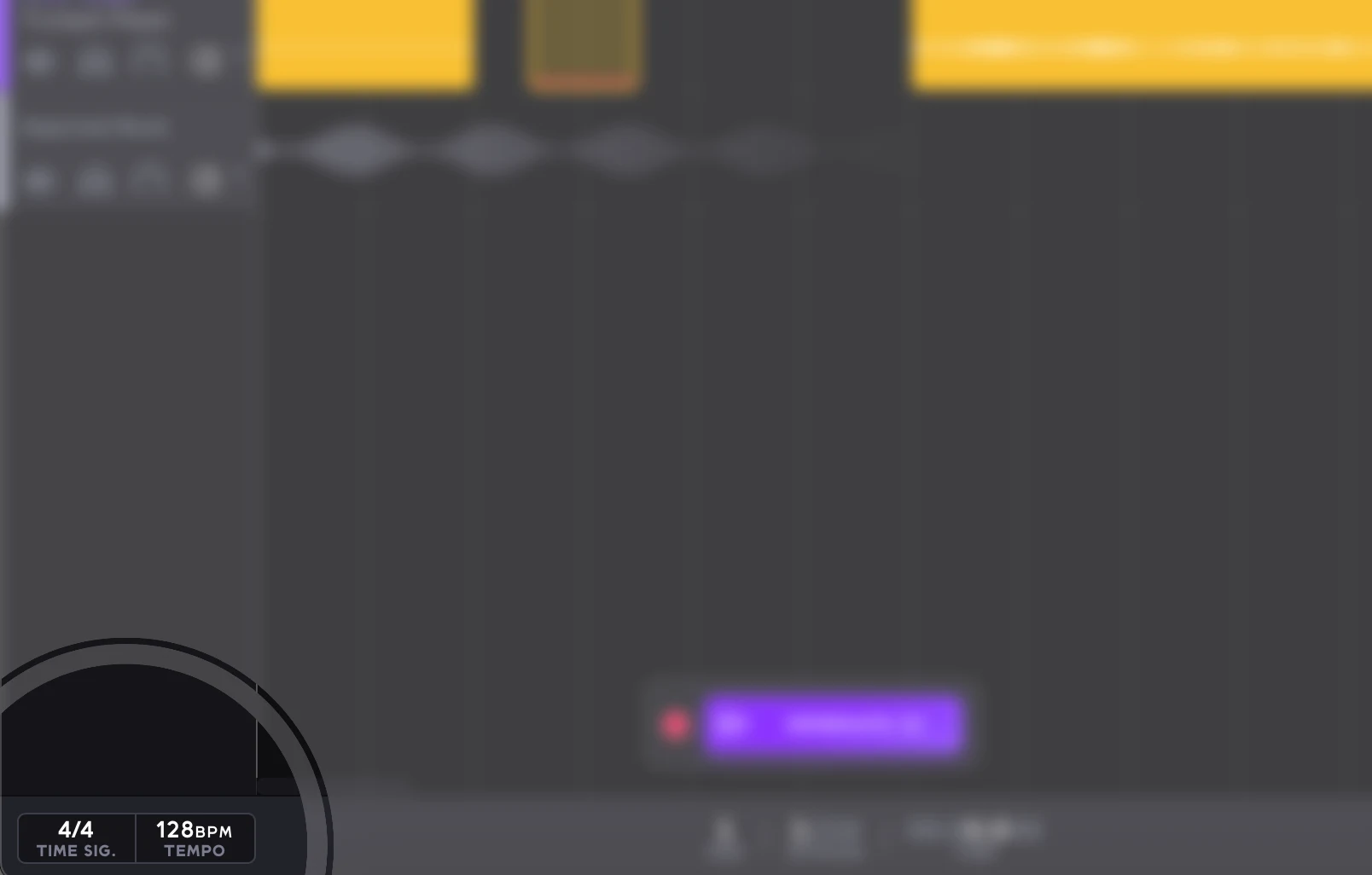
Set your project’s time signature and tempo from dials in the bottom left of the Composition page. By default the project time signature will be set to 4/4 and the project tempo will be set to 120 BPM.
Time Code
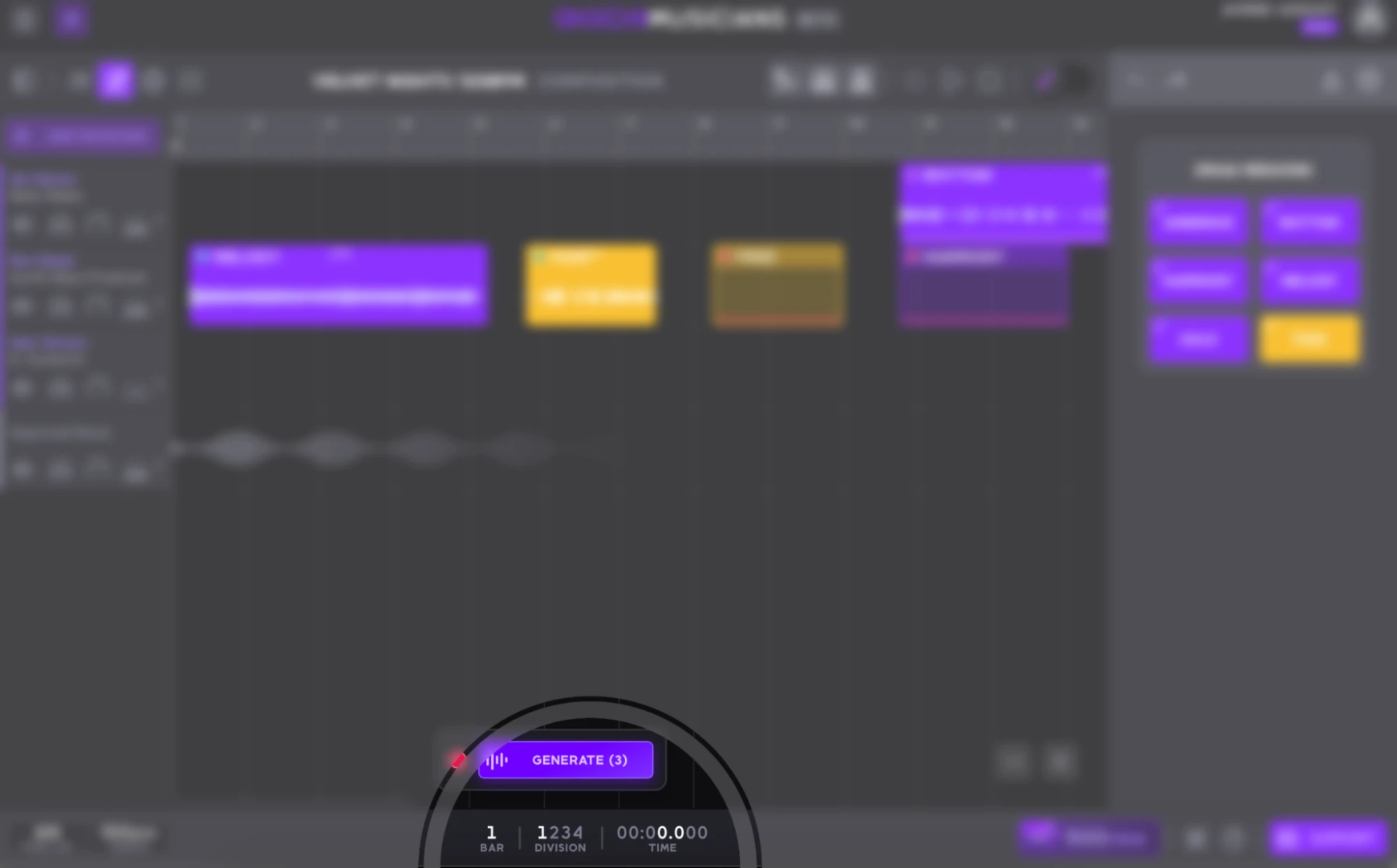
At the bottom center of the Composition page, the time code shows the playhead’s exact position in bars, divisions, and time.
Muses Tokens
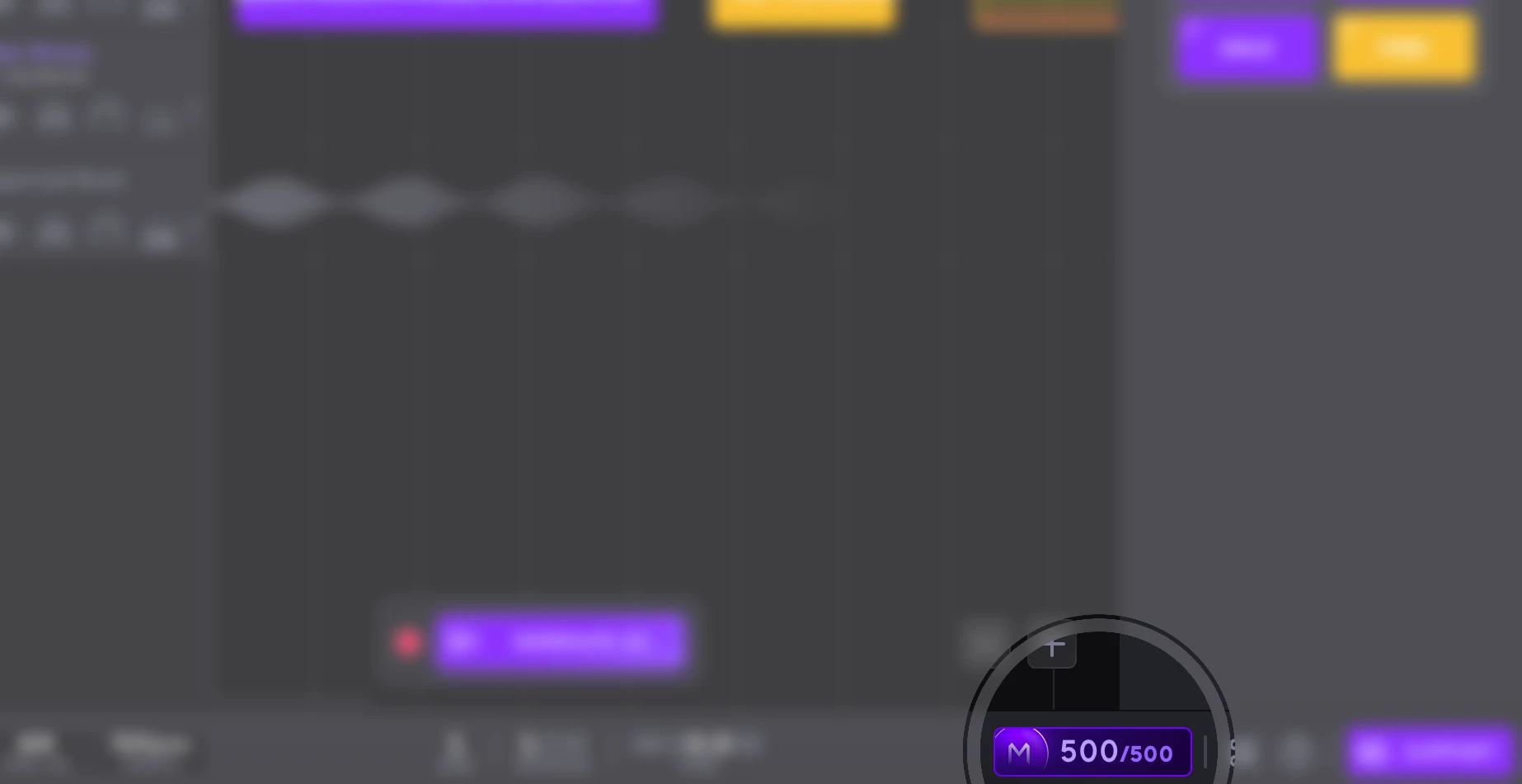
At the bottom right of the Composition page, you’ll see your Muses balance, Aiode’s currency used when generating new music regions. Ensure you have enough Muses to continue working on your tracks.
The name “Muses” comes from ancient Greek mythology, where the Muses were goddesses of literature, science, and the arts, inspiring creativity and knowledge in poetry, song, and storytelling.
Aiode’s Shortcuts
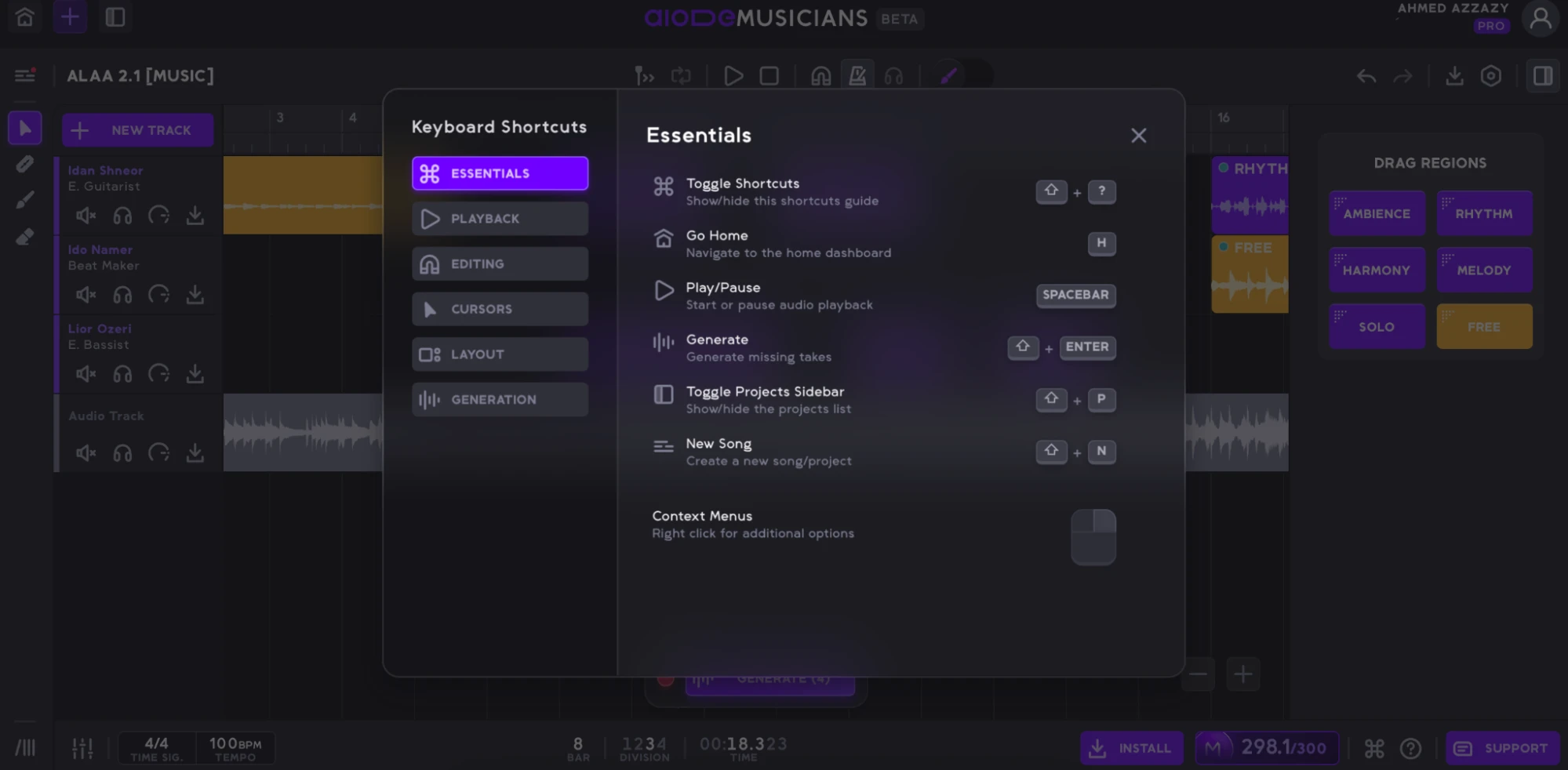
Aiode streamlines your workflow with a Quick Access Shortcuts button, giving you an overview of all keyboard shortcuts in the platform.
Help

The Help button takes you to a bank of information articles that help assist you and answer any questions you might have
Support
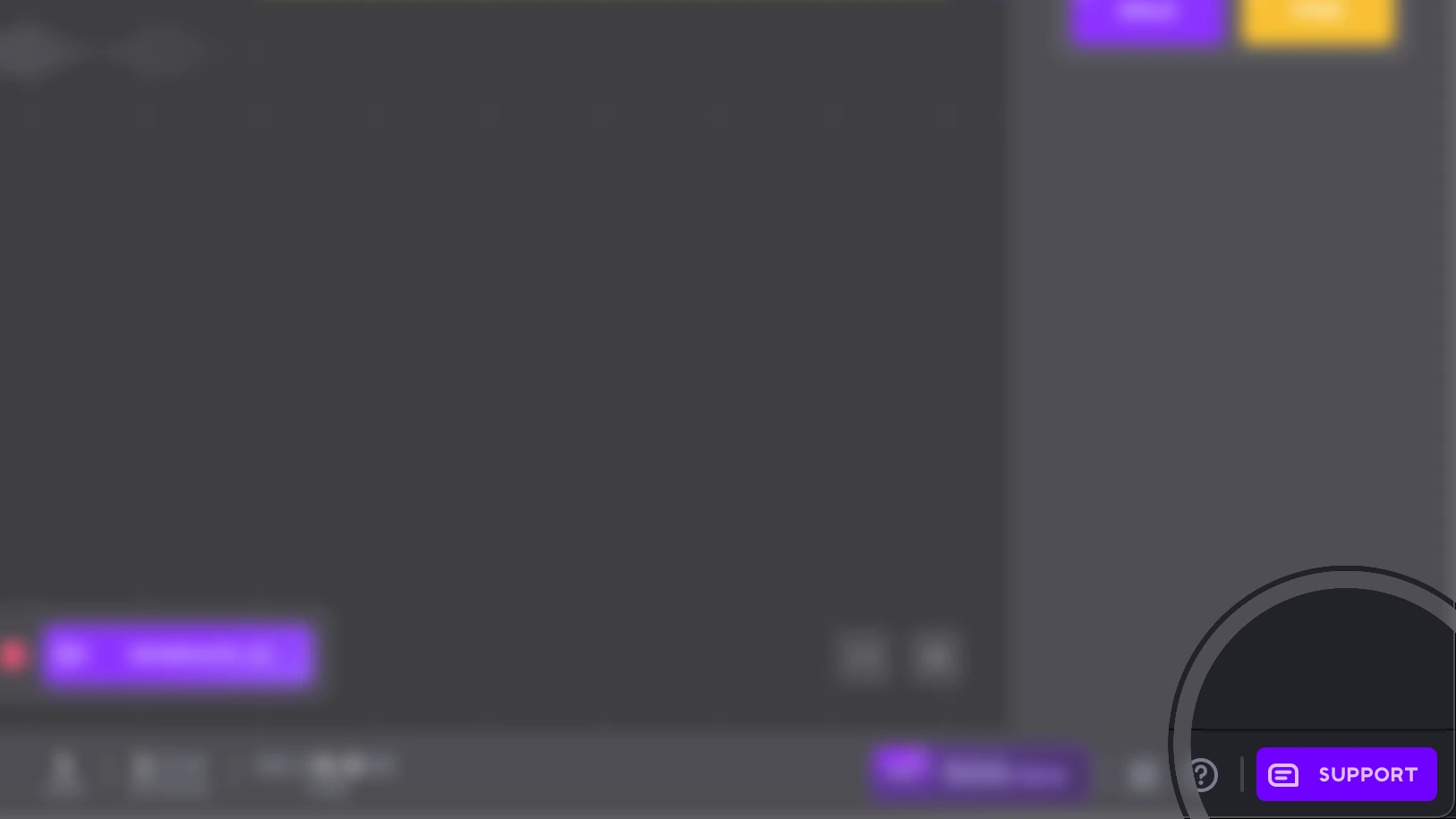
Contact Aiode’s support with a push of a button. Click the Support button in the far bottom right of the Composition page to get in touch with one of Aiode’s support team.
Advanced
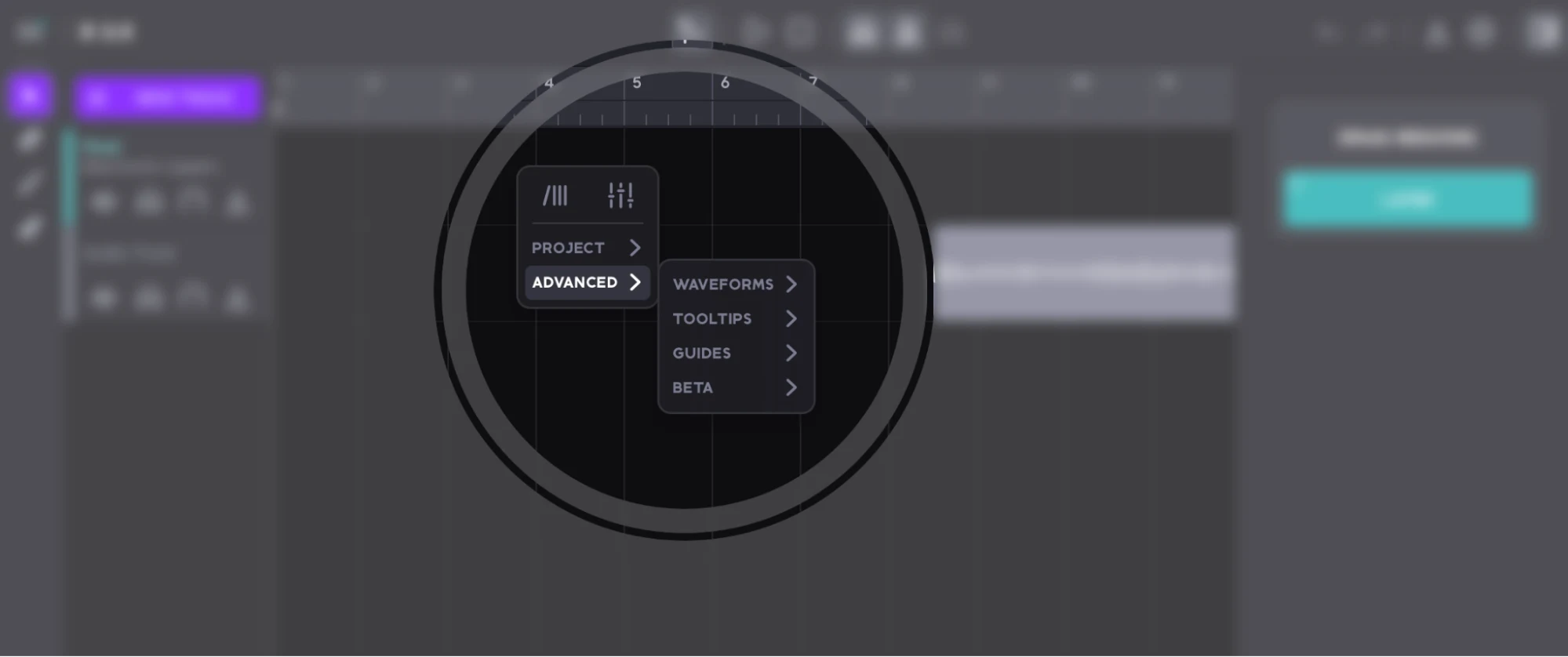
The Advanced dropdown menu provides additional interface and workflow options that help customize how the workspace behaves and displays information. To access it simply right-click anywhere in the composition page. From this menu, you can access settings such as Waveforms, Tooltips, Guides, and Beta features. Here are the controls in more detail:
- Waveforms: Adjusts how audio waveforms are displayed in the timeline. You can choose from Style which lets you decide whether waveforms are displayed in Lines or Full.
- Tooltips: Shows/Hides all of Video Hints, Tooltips, Shortcuts, and Amber Notes.
- Guides: Resets all guides and tutorials.
- Beta: section contains experimental features that are still being tested.
The Library [L/Z]

The Library can be opened from the bottom-left button on the Composition page, the shortcuts L or Z, or the right-click menu. It’s the central hub for exploring and adding Aiode’s Musicians, Layers, and Sample Remaker to your project. Each Musician or Layer has a dedicated tab with details like name, photo, primary instrument, signature genre, and performance style, making it easy to find the right sound or try new ideas. You can preview samples, favorite options for quick access, read in-depth descriptions, and add elements directly to your project. The Library streamlines discovery and creative selection, helping you build rich, dynamic arrangements efficiently.
Favorite a Musician/Layer
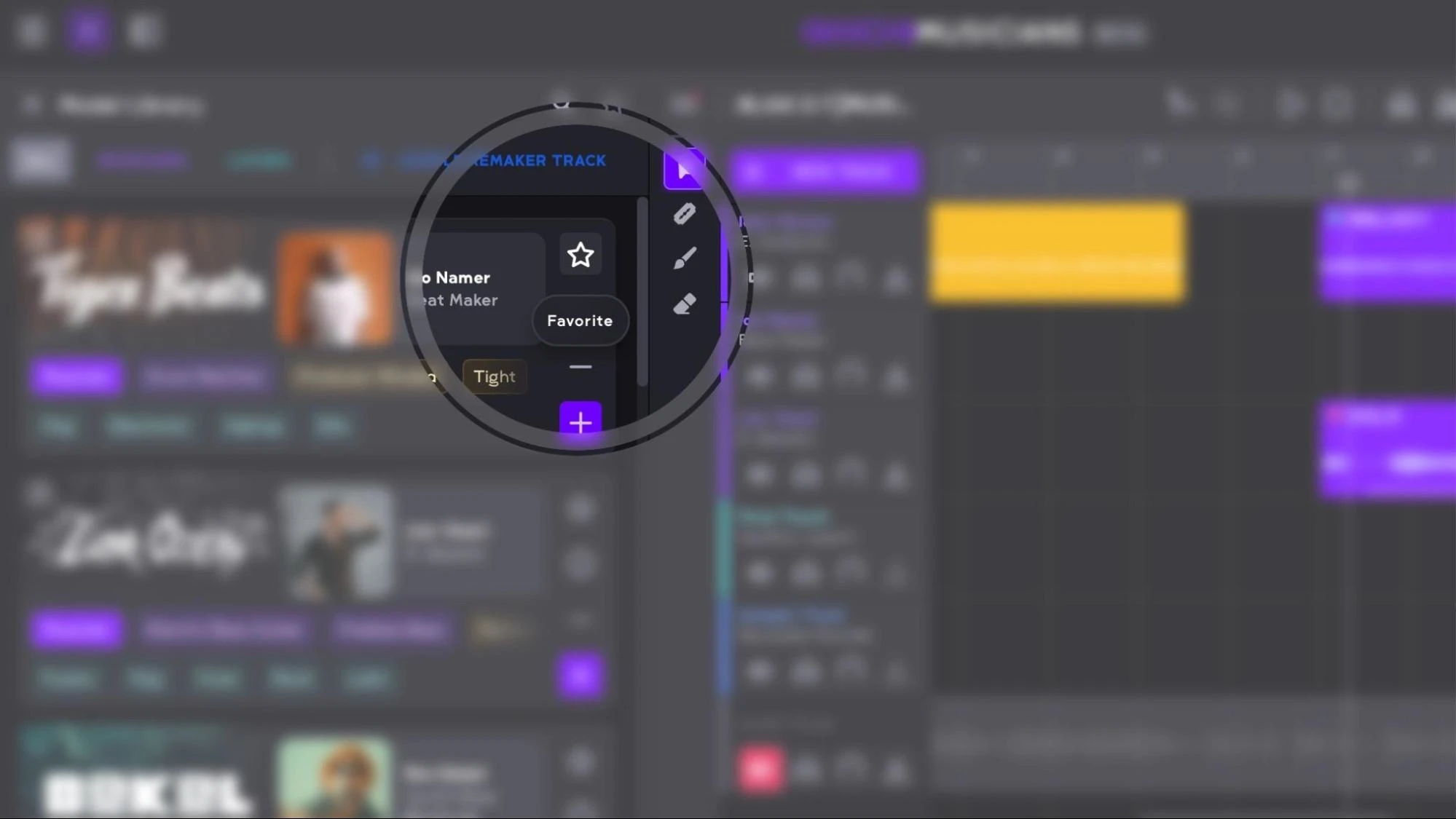
If you like a musician’s sound and playing style you can favorite them so that you can easily add them to your project if needed or add them to other projects. To do that simply click on the Favorite button with the star icon at the right of the musician’s tab.
More About the Musician or Layer
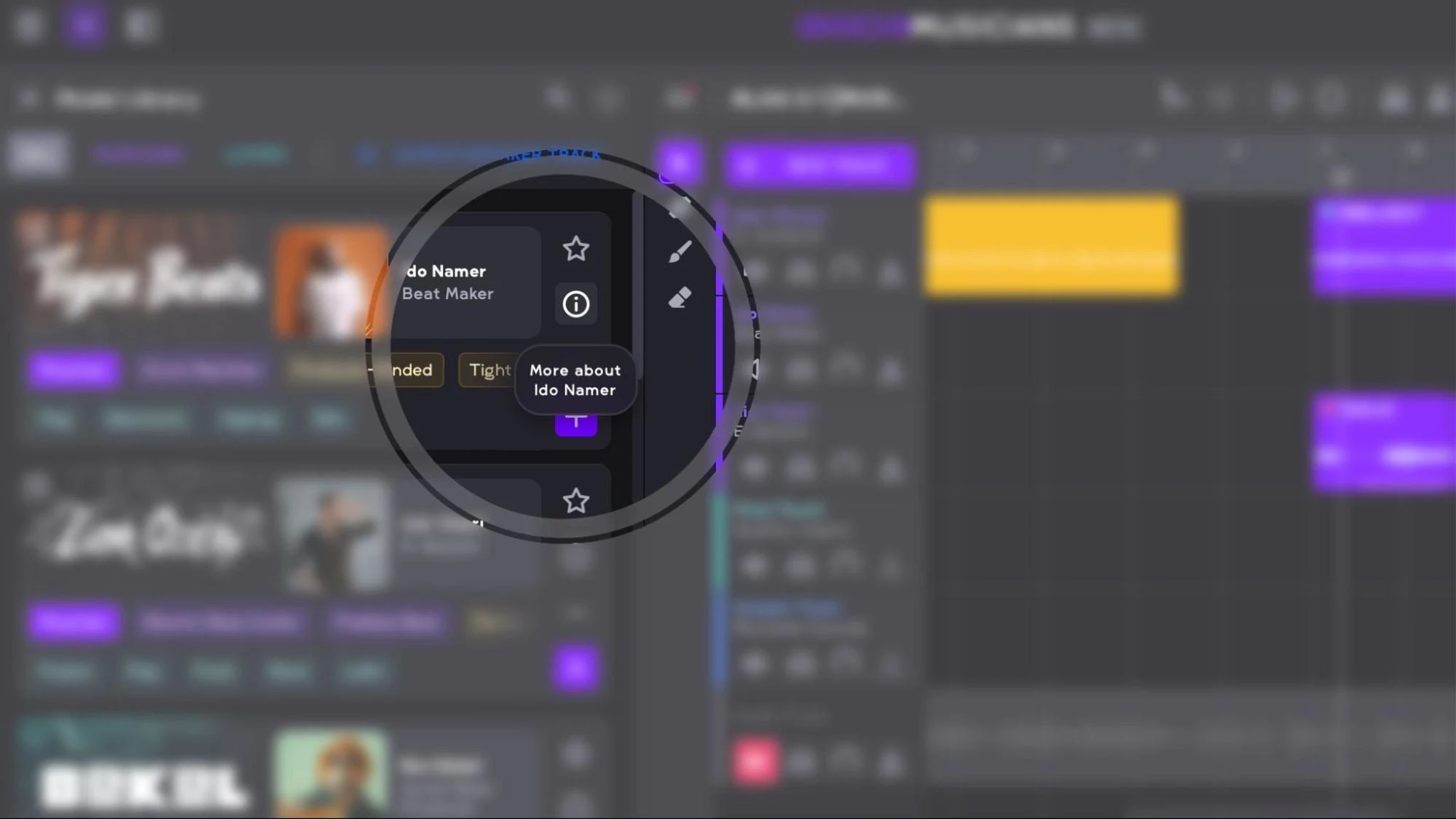
Press this button with an (i) icon to view detailed information about the musician, including their role, style characteristics, and how they contribute to your project. This section helps you better understand each musician’s strengths so you can make more informed creative decisions when building your arrangement.
Play Sample

Click the Play Sample button with the music icon which you can find at the right of each musician’s tab to listen to a sample of that musician’s sound and playing style. Each time you click the button a new sample will be played so that you can make up your mind about whether to add that musician to your track.
Add/Remove Musician/Layer
To add a musician to your song, simply click the plus (+) icon, which will assign that musician to your project and make them available for generation. Once added, the musician can be used to create regions and musical parts within your arrangement.
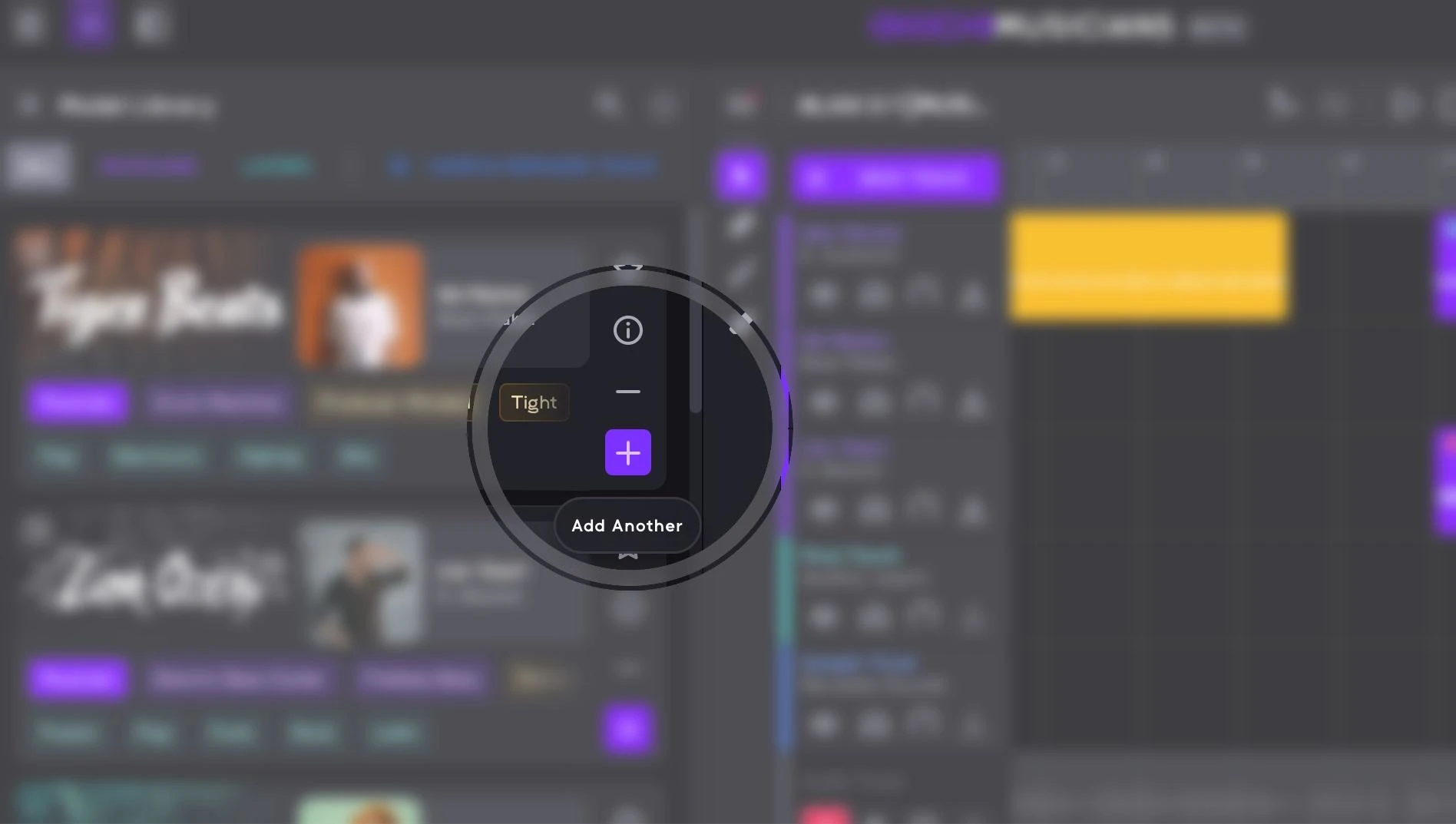
To remove a musician, click the minus (–) icon, which instantly unassigns them from the project. This allows you to keep your workspace organized and focus only on the musicians that are relevant to your track.
Musicians
We collaborate with real musicians who select instruments, genres, and styles for their virtual counterparts, ensuring their unique artistry is fully represented. You can add any virtual musician to your composition and enjoy their unique playing style.
🥁 Eldar Moshe (The Backbeat) – Drummer
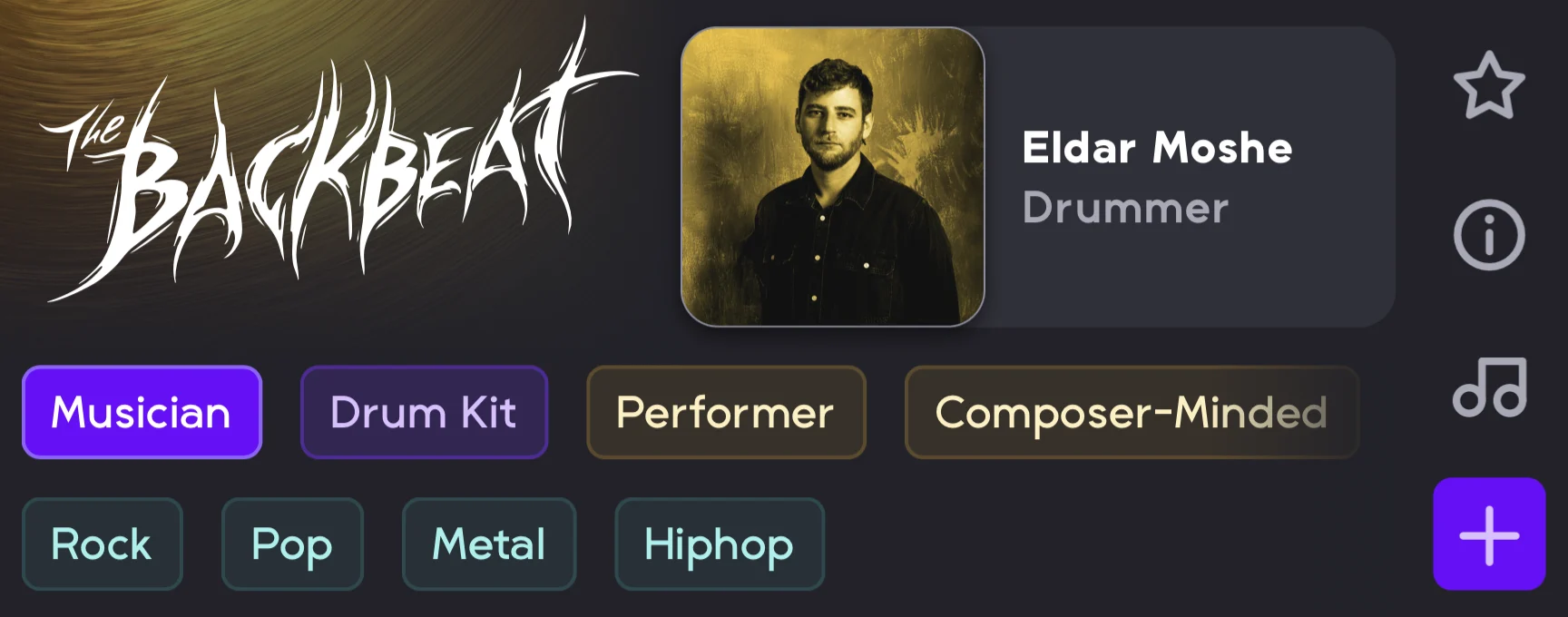
Eldar Moshe is a versatile drummer and composer who has made a significant mark on the music scene by blending technical precision with profound emotional depth. Since co-founding the alternative rock band Bare Dreams in 2017 and the post-hardcore group Made By Past, he has earned critical recognition for his dynamic performances across a diverse spectrum of genres, including punk, hardcore, metal, and pop. As a “composer-minded” performer whose primary voice is the drum kit, Moshe’s work consistently bridges the gap between high-energy rhythmic intensity and thoughtful musicality, whether he is driving an alternative rock anthem or a hip-hop groove.
🎹 Ido Kashi – Pianist
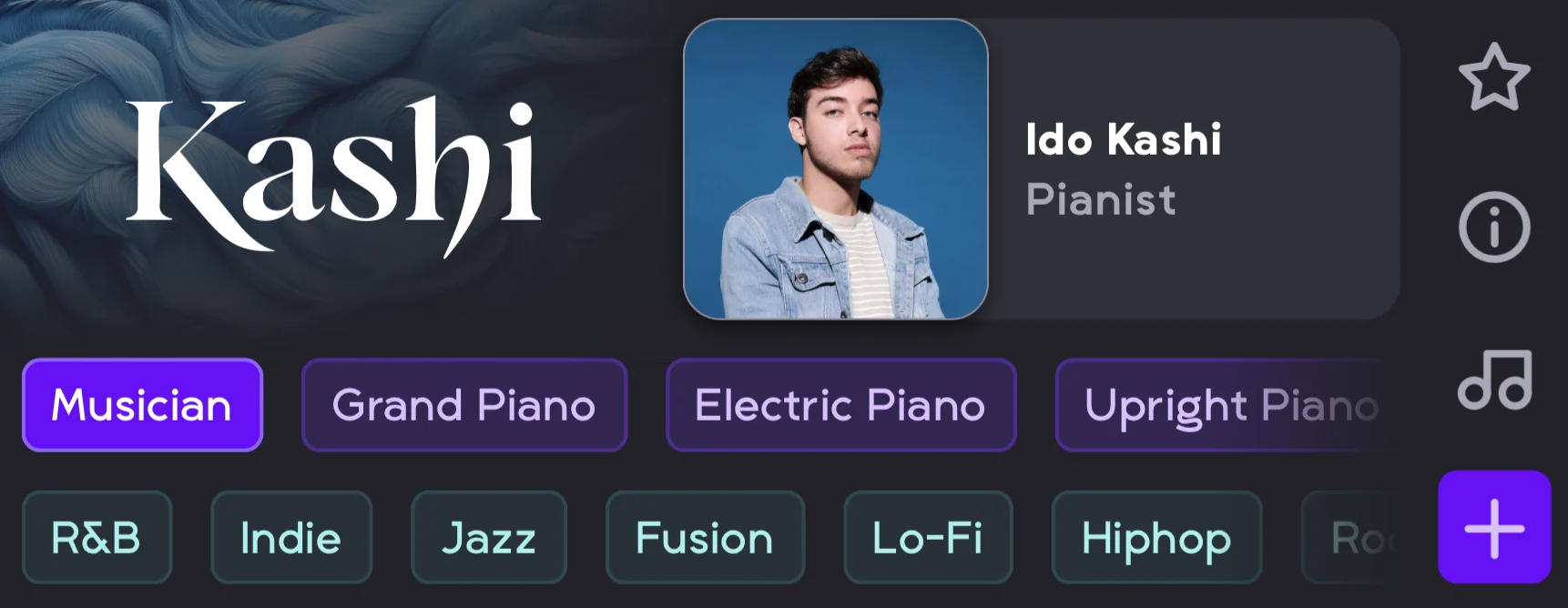
Ido Kashi is a versatile composer, multi-instrumentalist, and producer whose work seamlessly bridges the gap between intimate solo piano and expansive, cinematic scores. Rooted in jazz but seasoned by a diverse career in film and television, he possesses a unique “composer-minded” approach that allows him to craft evocative soundscapes across genres as varied as R&B, Indie, Fusion, Lo-Fi, and Rock. While he primarily expresses his signature harmonic richness through the grand and electric piano, his ability to build powerful arrangements, from minimalist hip-hop beats to tight rock ensembles, ensures his independent releases consistently resonate with depth and an unmistakable sense of scale.
🥁 Ido Namer (Tiger Beats) – Beat Maker
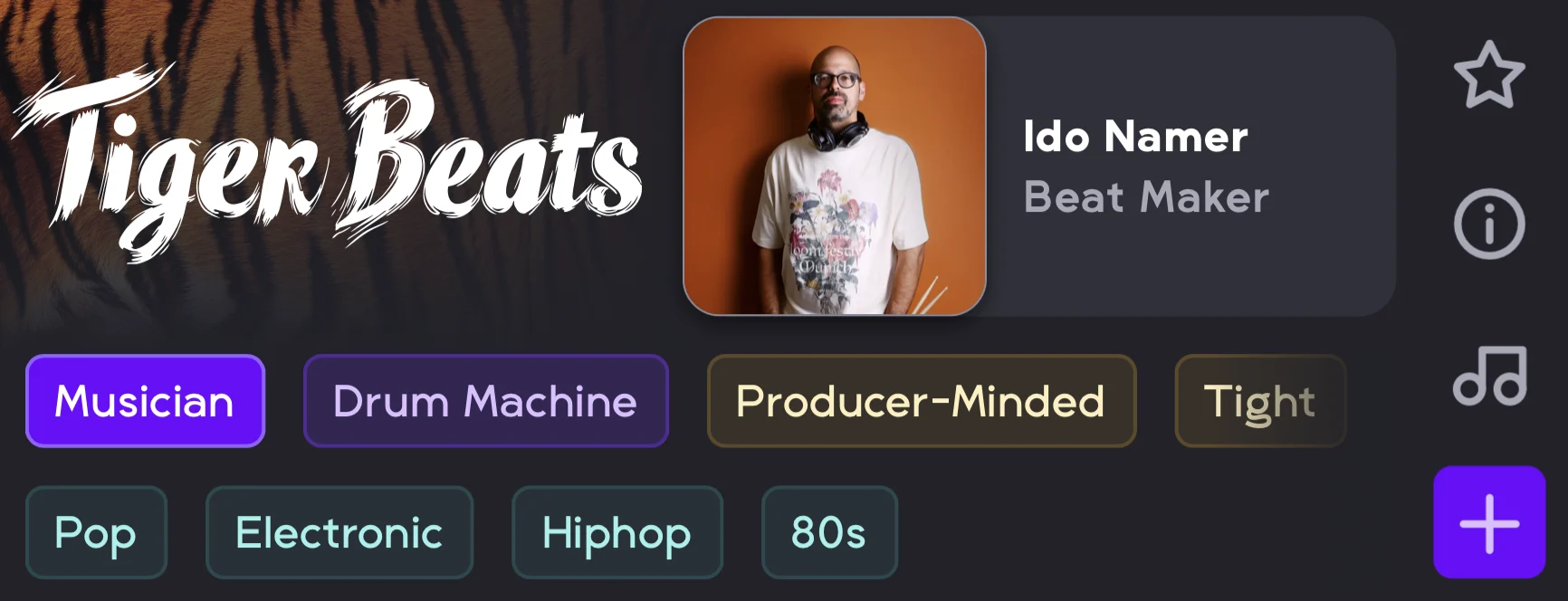
Ido Namer, also known as Tiger Beats, is a producer-minded beat maker recognized for his rhythmic tightness, expressive feel, and detailed sound design. Specializing in Pop, Electronic, Hip hop, and 80s-inspired production, he crafts each sample from scratch, carefully shaping pitch and texture to fit every track. Using drum machines, pads, keyboards, and live-triggered drums, he creates dynamic, tight, and richly textured productions that blend technical precision with musicality.
🎸 Lior Ozeri – Electric Bassist
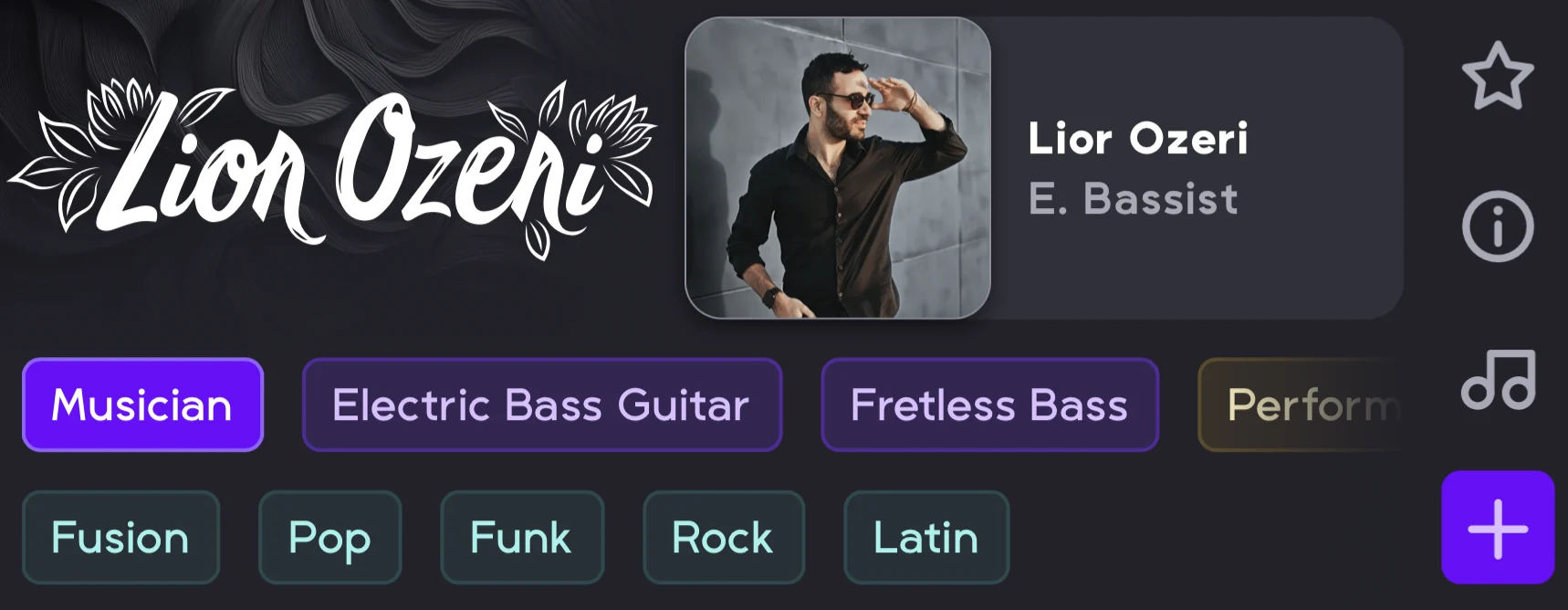
Lior Ozeri is an accomplished, groove-oriented bassist known for his versatility and rhythmic precision, seamlessly bridging genres from Jazz Fusion, Pop, Funk, and Rock to Latin music. With a strong sense of groove and deep harmonic understanding, he delivers both driving foundations and expressive melodic lines, supported by his fluid feel and impeccable timing. His gear, including electric bass and fretless bass such as Fender Jazz Bass and Fender Precision Bass models, reflects his careful, expressive approach to tone and sound.
🎹 Ron Bakal – Synth Bass Producer
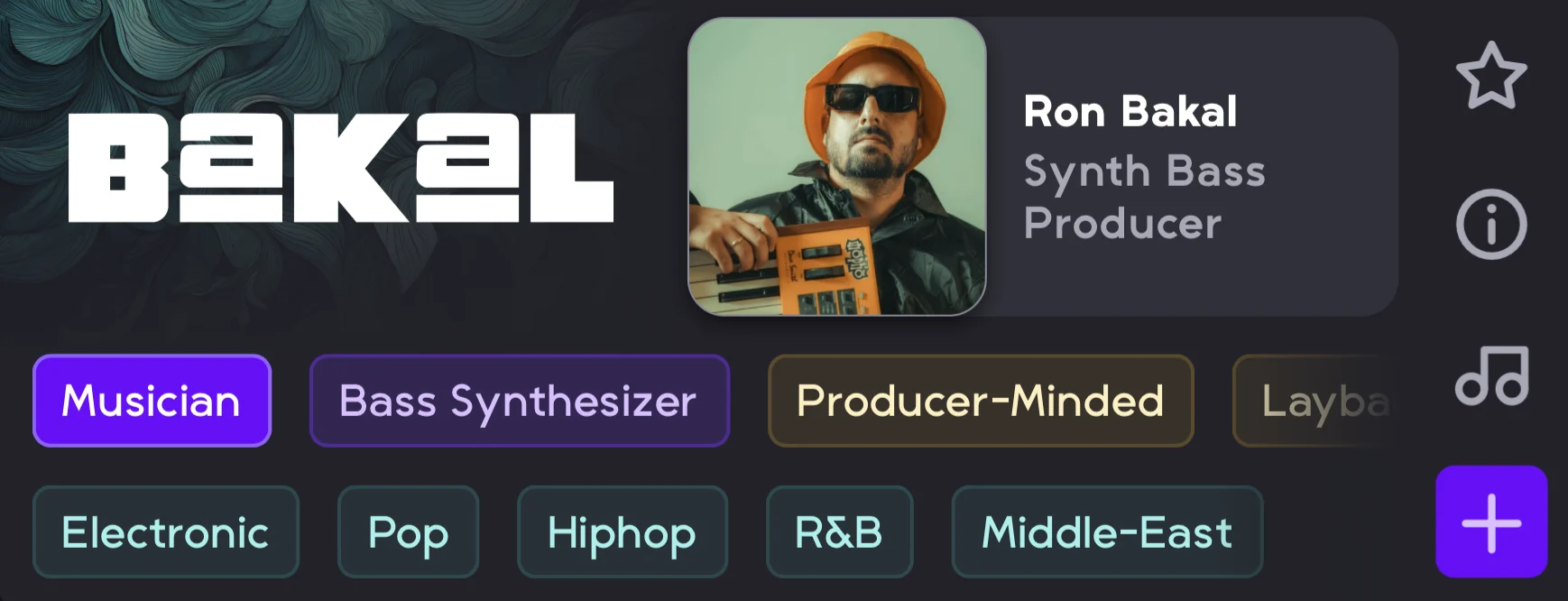
Ron Bakal is a synth bass producer known for crafting deep, powerful basslines that blend the warmth of analog synthesizers with modern digital precision. Using instruments such as the Moog Sub Phatty, Korg Kronos 2, Korg Minilogue XD, and other bass synthesizers, he creates immersive, heavy low-end textures designed for both rhythmic impact and emotional resonance. Specializing in Electronic, Pop, Hip hop, and R&B, his production style focuses on sculpting low frequencies with depth, clarity, and analog warmth.
🎸 Idan Shneor – Electric Guitarist
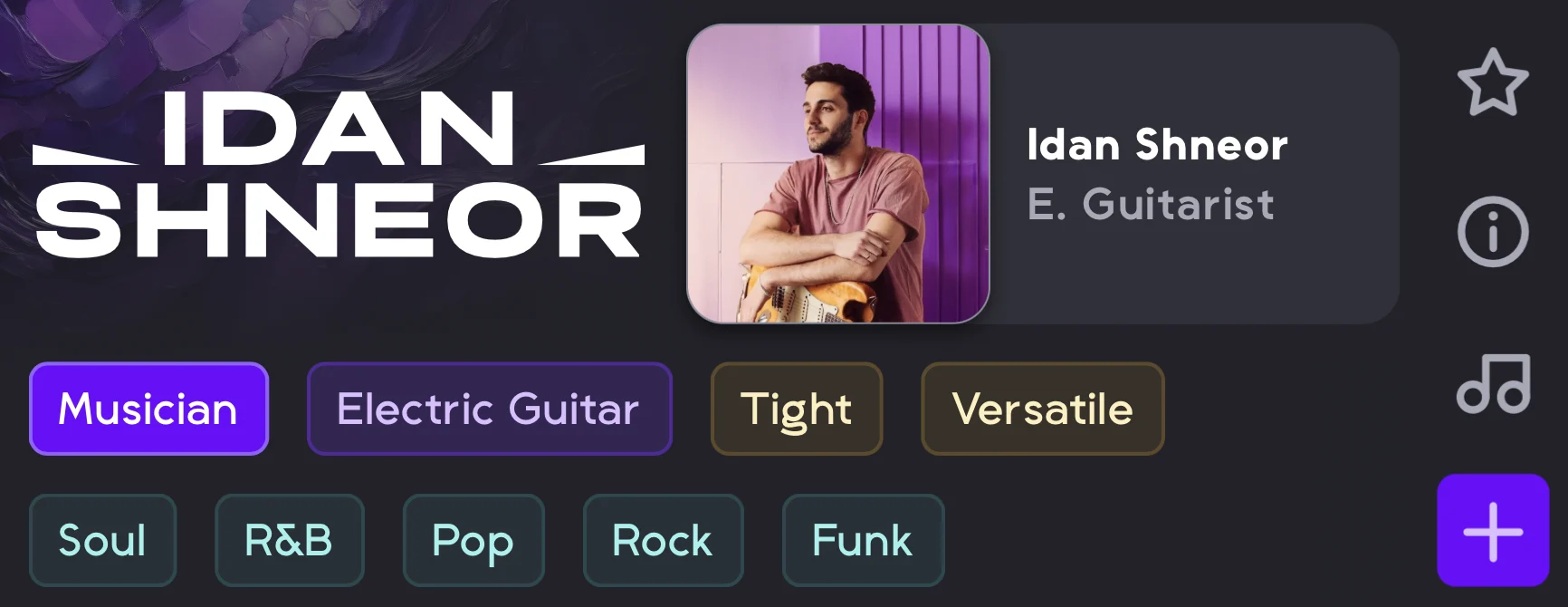
Idan Shneor is a tight and versatile guitarist known for expressive playing that blends technical precision with emotional depth, drawing from influences across Soul, R&B, Pop, Rock, and Funk. Using his Les Paul electric guitar, he delivers intricate fingerstyle techniques, rhythmic agility, and a warm, resonant tone, crafting performances with careful attention to nuance and storytelling. Whether performing intimate passages or energized riffs, his playing reflects mastery, authenticity, and a compelling musical narrative.
🎺 Avior Rokah – Trumpet Player
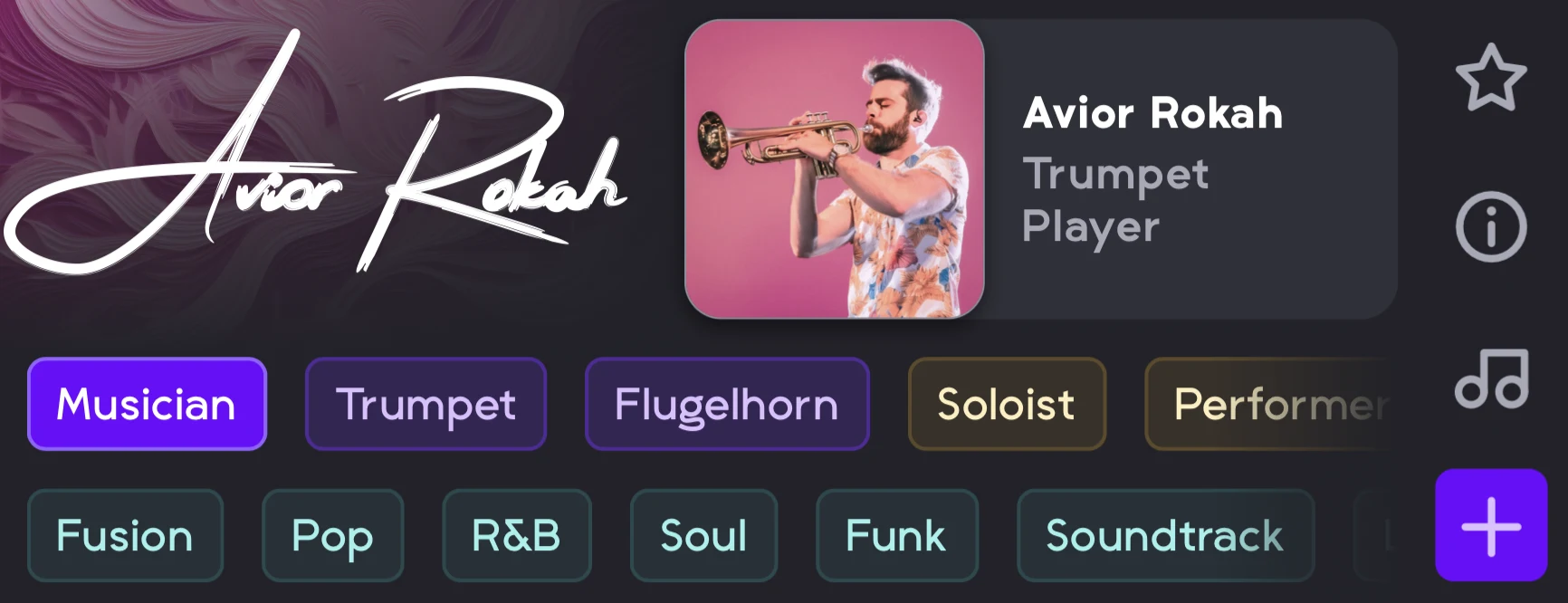
Avior Rokah is an expressive and versatile trumpet player known for his rich tone, clear articulation, and dynamic phrasing across Jazz Fusion, Pop, R&B, Soul, Funk, Soundtrack, and Lo-Fi. Blending energetic improvisation with emotional depth, he brings both power and nuance to his performances on trumpet and flugelhorn. In addition to his playing, Avior arranges and records full horn sections, carefully crafting harmonies and rhythmic layers that elevate and enrich any track.
Layers
Layers work as your co-producer, intelligently adding depth, texture, and emotion to your music. Each Layer behaves like a specialized virtual musician, designed to enhance your composition with a unique stylistic voice. Just like human collaborators, every Layer has its own musical personality, from rich cinematic textures to rhythmic energy. Let’s explore the creative potential of each one:
✨ Final Touch – Quality Layers
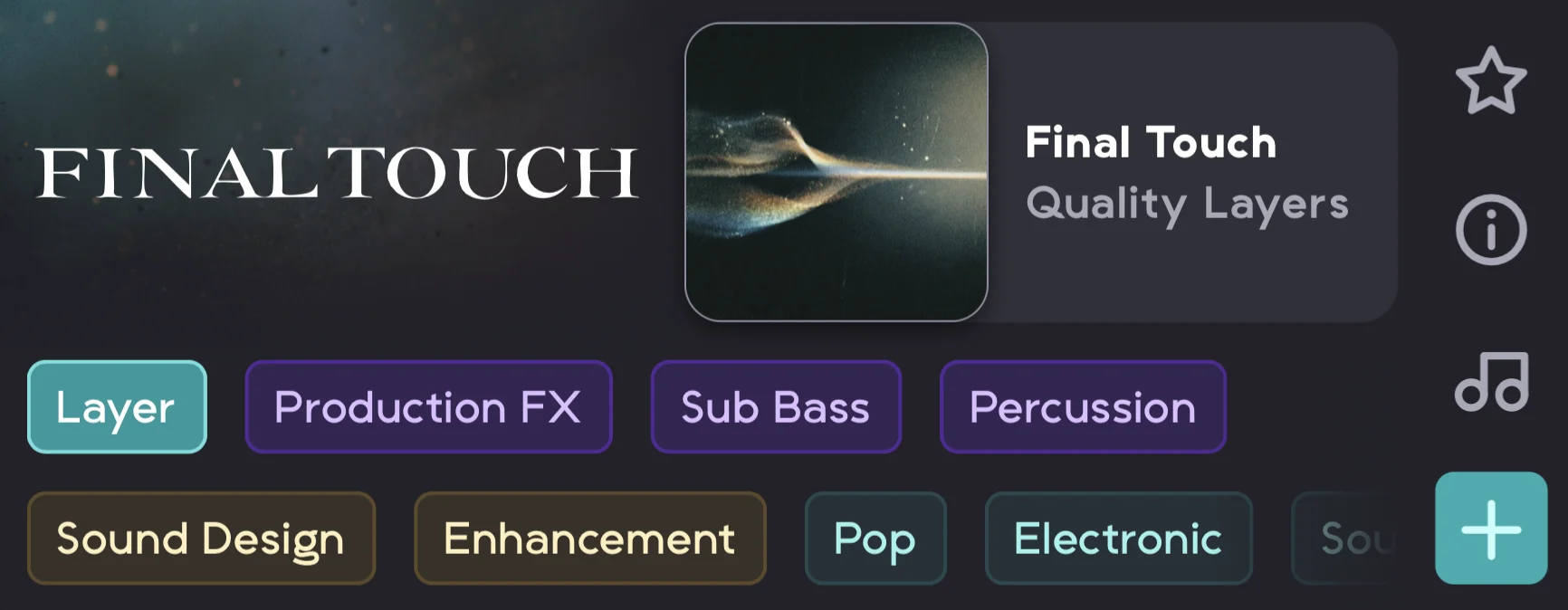
This layer is for applying a professional polish and adding impactful production elements to your tracks. Its purpose is to provide the final effects and production details necessary to refine a mix, including atmospheric sound design, critical low-end support, and specific rhythmic accents. It’s used to enhance the overall quality and sonic character, making a track feel complete and professionally mixed.
Use Cases
- Production Enhancement: Add professional polish and effects to tracks
- Sound Design: Creative FX elements for transitions and atmosphere
- Genre-Specific Production: Electronic vs acoustic percussion classification
- Mix Finishing: Sub bass and effects for final production touches
🪘 Groove – Rhythmic Layers
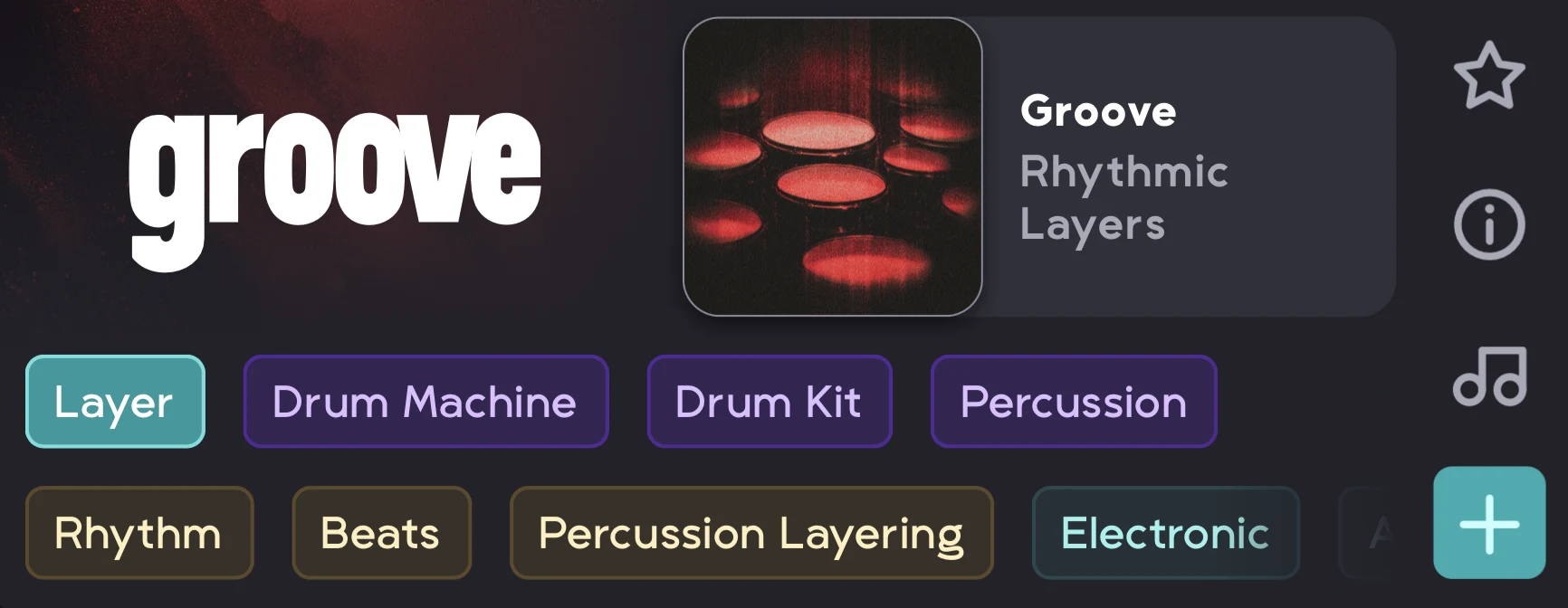
This layer’s purpose is to establish and add to the rhythmic foundation of any song. It provides the tools to create full drum and percussion tracks, both modern electronic beats and classic acoustic drumming styles. It’s used for beat programming, creating genre-specific rhythms, and layering diverse percussive elements.
Use Cases
- Rhythm Section Creation: Complete drum and percussion tracks
- Beat Programming: Electronic vs acoustic percussion selection
- Genre-Specific Rhythms: Electronic for EDM/Hip-Hop, Acoustic for Rock/Jazz
- Percussion Layering: Mix electronic and acoustic elements
🌍 Folk – Acoustic Layers
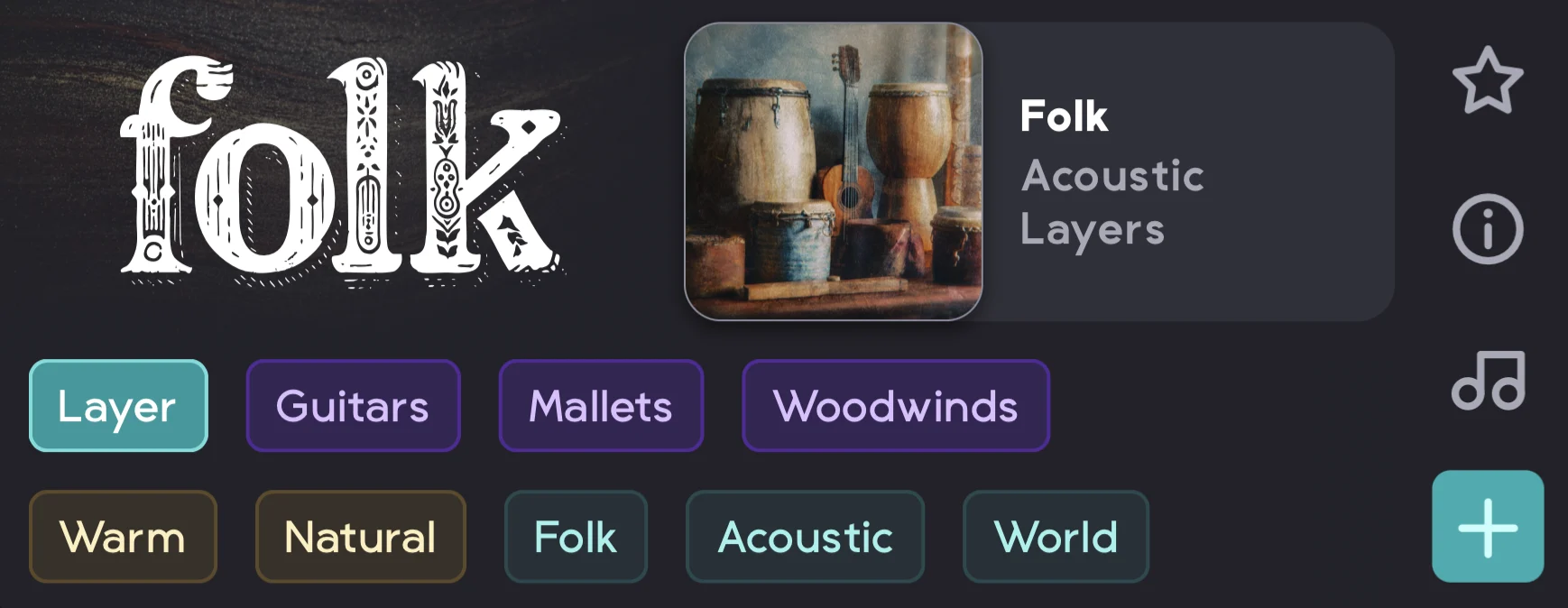
The Folk layer is for infusing your music with authentic acoustic sounds and distinct cultural textures. Its purpose is to create traditional folk music elements, either focusing on melodic and harmonic instruments from various cultures or on ethnic percussion.
Use Cases
- World Music Production: Authentic traditional and ethnic instruments for global music creation
- Harmonic/Rhythmic Control: Separate control over melodic vs percussive world music elements
- Cultural Film/Game Scoring: Traditional world instruments for authentic media soundtracks
- World Music Fusion: Blend harmonic and rhythmic world elements with modern production
⚡ Pixel – Electronic Layers
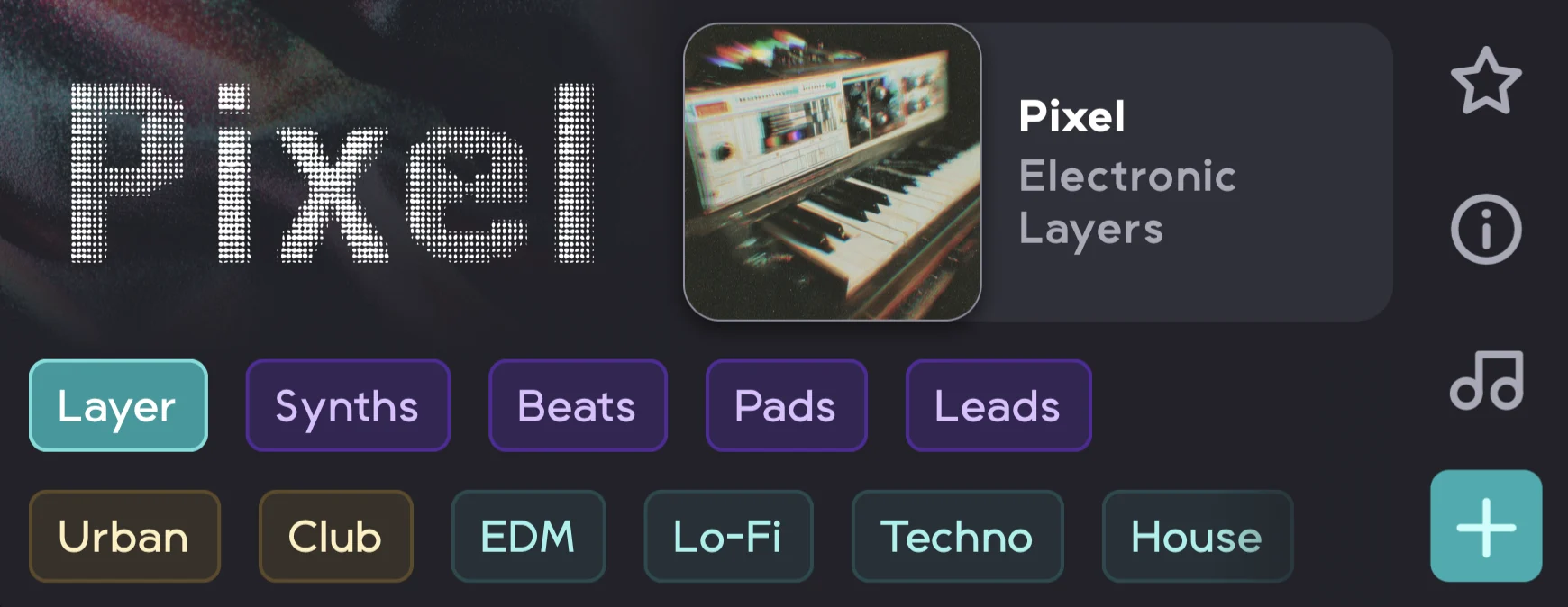
The Pixel layer is designed for producing all core components of modern electronic music. Its purpose is to provide the means to generate driving electronic rhythms, foundational basslines, rich harmonic textures from synthesizers, and captivating lead melodies. It’s used to create complete, contemporary electronic soundscapes and track elements for genres like EDM, techno, and pop.
Use Cases
- Electronic Music Production: Complete EDM, techno, house production
- Beat Making: Electronic rhythm, bass, and harmony elements
- Dance Music Creation: Club-ready electronic elements
- Modern Pop Production: Electronic elements for contemporary tracks
🎻 Cinematic – Orchestral Layers
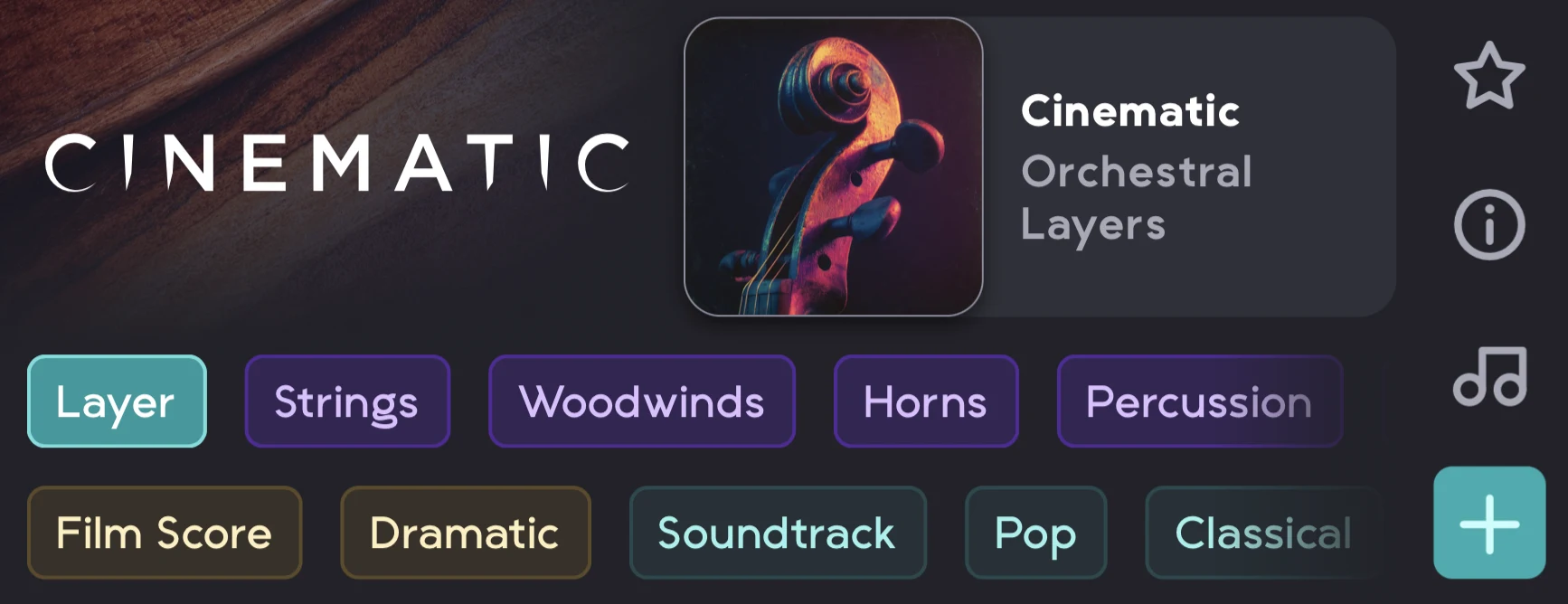
This layer’s purpose is to create grand, expressive, and dramatic musical scores using traditional orchestral instrumentation. Designed for film scoring, classical compositions, or any project that requires large-scale orchestral textures. It provides strings, woodwinds, horns, orchestral percussion, mallets, harps, and choral arrangements.
Use Cases
- Film Scoring: Complete orchestral sections for cinematic music
- Classical Composition: Traditional orchestral arrangement
- Hybrid Orchestral: Mix orchestral elements with modern genres
- Epic/Cinematic Production: Large-scale orchestral textures
Performance

The Performance popup lets you fine-tune every detail to match your creative vision and bring your music to life with just a few clicks. You can edit the Performance of every individual region by clicking on the region and choosing Performance.
The Performance popuplets you meticulously set a number of parameters that determine the output of your musician’s playing. You can alter all of Style, Envelope, Timbre, Dynamics, Complexity, Articulation, Sound, and Fills.
Instrument
Some musicians play more than one instrument. For example, Avior Rokah the trumpet player also plays Flugelhorn, you can choose which instrument he plays for each region.
Articulation
This section controls how a musician plays their notes. Each musician has different articulations based on their instrument, and all articulations are enabled by default. You can turn off any articulations you don’t want to use.
Available articulations include:
- Picking: Standard note picking for melodic or harmonic lines
- Muted: Soft, dampened notes for rhythmic effect
- Finger Style: Notes played using finger techniques, giving a natural, nuanced feel
- Strumming: Chord strums, perfect for rhythm and texture
Sound
This section controls various aspects of a musician’s tone, allowing you to shape how their instrument sounds in your project. For guitarists, it provides control over pedals and amplifiers, while for brass or other instruments, it adjusts sound processing and tonal characteristics.
Available sound options include:
- Clean: A pure, unprocessed tone
- Overdrive: Adds warmth and subtle grit for a richer sound
- Distortion: Produces a heavily saturated, aggressive tone
Basses
The bass section offers a selection of different bass types to suit your track:
- Jazz Bass: Smooth and versatile, ideal for a wide range of genres
- Precision: Punchy and defined, perfect for driving grooves
- Fretless: Soft and expressive, with a fluid, sliding character
Processing
This section controls the sound processing of the bass, allowing you to shape its tone and character. Available options include:
- DI: Direct input for a clean, uncolored signal
- Drive: Adds warmth and subtle saturation to the bass
- Octaver: Creates octave effects to thicken and enrich the sound
Kits
This section controls the overall sound and style of the beat, letting you shape the character and vibe of your drum tracks. Available options include:
- Modern: Contemporary acoustic and electronic drum sounds
- Electronic: Synthesized drum tones for EDM, pop, and experimental styles
- Sampled: Realistic, recorded drum samples for authentic textures
- 80s: Classic drum machine and retro sounds reminiscent of the 1980s
Here is a breakdown of the other parameters
- Style: Choose between Retro, which delivers the nostalgic warmth and character of ’90s-era recordings, or Modern, which leans into sleek, futuristic tones and textures. This sets the overall vibe and aesthetic of the musician’s performance.
- Envelope: Select from Simple, Punchy, or Pluck to control the shape and groove of the sound. These options influence how the notes start and end—whether they’re smooth and laid-back, snappy and bold, or sharp and percussive.
- Timbre: Shape the tonal “color” of your music, just like adjusting a guitar amp—with settings like Clean (clear and natural), Drive (gritty and energized), Fat (warm and thick), and Wide (spacious and expansive).
- Dynamics: This setting controls how expressively the musician plays, affecting the contrast between soft and loud moments. Use it to create performances that are more restrained or full of emotional range and movement.
- Complexity: Adjust how rich, detailed, or minimal the performance is. A lower complexity keeps things simple and tight, while a higher setting introduces more variation, ornamentation, and musical intricacy.Overdrive for a gritty edge, or Distortion for a more aggressive, saturated sound.
- Fills: Decide whether the musician sticks closely to the song structure or spices things up with creative fills and transitions. This adds spontaneity and personality to the performance, if desired.
Stereo Double
Generates a stereo double for the audio region, enhancing its spatial depth.
The Mixer [X]

The Mixer is similar to that in a normal Digital Audio Workstation (DAW). You can access the Mixer by pressing the letter X onyour keyboard or from the right-click drop down menu. The mixer displays your tracks in a vertical channel manner with the name of the track/musician displayed on top. You can adjust the track’s volume by dragging the slider up or down. You can also type in the exact volume level you want for the track in dBs. The volume ranges from +6dB to minus infinity.
The Mixer also provides you with the following controls for each track:
- Mute: Mutes the track, while other unmuted tracks play normally.
- Solo: Solos the track, muting all other tracks.
- Download Track Audio: Lets you download the entire audio on the track from song start to finish, even if there are empty sections with no regions on them. Downloads in WAV format.
Aiode Pricing Plans

Aiode currently operates on a token-based pricing model during its beta phase, using Muse Tokens, where one Muse Token typically represents about one minute of AI-generated music. There are four main plans available: Free, Basic, Pro, and Enterprise. Choose the plan that best fits your music production needs.
Free
Start creating and experimenting in a virtual session with limited monthly credits. No credit card is required. Please note, the Free plan does not allow commercial usage.
Benefits:
- Desktop App access
- 2 Mix Region Exports per month
- 10 Muse Tokens per month
- Access to all available musician tracks
- Access to all control features including: Region Control, Generate Mode, and Edit Performance
- Limited to 2 musicians per project
- Download in MP3 format
This plan is ideal for users who want to explore what Aiode can do.
Basic
The Basic plan allows you to create more with increased performances and production options. Priced at $9.99/month or $8.33/month billed annually, this plan is perfect for beginner producers.
Benefits:
- Everything in Free plan, plus:
- 100 Muse Tokens per month (over 2 hours of generated music)
- Limited to 4 musicians per project
- Download in WAV format
- Download individual STEMs in WAV
This plan allows occasional producers to create higher-quality tracks with more flexibility.
Pro
The Pro plan is designed for professional creators seeking maximum control and early access to new features. Priced at $19.99/month or $16.60/month billed annually, it’s perfect for serious music production.
Benefits:
- Everything in Basic plan, plus:
- 300 Muse Tokens per month (over 8 hours of generated music)
- Access to 8 musicians per project
- Full commercial usage included
This plan is tailored for professional musicians, producers, and serious creators.
Enterprise
Designed for labels, schools, universities, or music groups, the Enterprise plan provides a tailored solution to meet your needs. Contact Aiode for a customized package.
Best Practices to Generate a Great Take
There are a number of handy tips that will have you generate great takes every time. Here they are:
Set The Right Tempo and Time Signature For The Song
Make sure you set the tempo and time signature of your song correctly. This is important as then you will be able to generate music takes that span an accurate number of beats/bars and is in sync with your song.
Put Your Song on The Beat
Make sure after uploading your song that it is in sync with the project. You can do that by dragging the song’s audio file left and right until the song is in sync with the Aiode project. This is important as it will allow you to generate music takes that fall nicely on beat with your song.
Create Regions One Bar Before The Targeted Section
In order to get great music takes make sure to have regions start at least one bar before the beginning of the section you want to generate music for (pick-up bar). So for example, if you want to create a bassline for the chorus section of your song which starts in bar 64, have the bassline region start from bar 63. This way you get the best out of Aiode’s virtualized musicians. In the case of a bassline for the chorus you might get a nice bass slide-in right before bar 64, which absolutely spices up your song!
Create Regions With The Right Desired Length
Make sure to set the region length to exactly what you’re looking for. This is important as you will not be able to extend the length of the take after it is generated. You will then have to generate a new take.
Listen To More Than One Sample Of Musicians’ Performance
In the Library you can click on the Play Sample button to listen to a sample of the musicians’ playing. This lets you listen to their sound and playing style and make up your mind about whether to include them in your project. What’s amazing about Aiode is that you can click on the Play Sample button endlessly and listen to the musician many times until you’re absolutely sure.
Check The Genres In Which Musicians Perform Best
As Aiode’s virtualized musicians are modeled after real musicians, it is normal for each one of them to excel at some genres more than others. Each musician has their own sound, i.e. guitar and/or amp sound in the case of an electric guitar player, and each one has their own unique playing style. Make sure to read the little genre cards displayed on each musician’s tab in the Library. This will help give you an indication of whether to add that musician to your project or not.
Make Use Of The Edit Performance Features
Aiode’s Performance popup gives you an arsenal of cool controls over your project letting you control how virtual musicians perform in your track. It lets you adjust dynamics, complexity, and articulation of the musicians’ performance. Want a part played with a pick? Or maybe muted? Performance lets you fine-tune every detail to match your creative vision and bring your music to life with just a few clicks.
Adjust Volume Levels of The Tracks
Just like in a normal song mixing project, the Mixer gives you control over individual tracks’ volume faders. Use them to properly mix your song and make it sound as good as possible. You can also use the volume dials in the Composition page located at each track’s header.
Experiment With More Than One Musician
Aiode gives you an arsenal of virtualized musicians. Each musician has their unique sound and playing style. Make sure that you experiment with adding more than one musician to the targeted section you want to create a take for so that you get the best result for your song. Note, you can mute musicians using the Mute button located at each track header in the Composition page, and also using the track controls in the Mixer.
How To Avoid Common Mistakes
This section includes tips on avoiding common mistakes when using Aiode. Those mistakes might result in generating less than ideal takes and/or hinder your workflow and enjoyment of the process of making music using Aiode.
Mistake: Upload an Audio File That is Bigger Than 150MB
When uploading your song to Aiode make sure that the audio file of the song, whether vocals, drums, melody, or a full composition, is under 150MB, which is the limit on Aiode. You can achieve that by exporting the song’s audio file in MP3 file formats, it will be way lesser in size.
Mistake: Not Align Your Song To The Grid
When uploading your song to the Aiode project it is important to align it with the grid. This means that the song is in groove with the Aiode project. Achieving that will guarantee generating better takes for your song.
Mistake: Create Short Take Regions
When creating take regions for a selected musician make sure to have the region slightly longer than the desired take length for the targeted section. The addition could be only one bar long at the beginning of the section (pick-up bar). This assures that the generated takes cover the section fully and also any cool notes played by the musician leading to the first beat of the section are recorded.
Mistake: Choose The Wrong Musician/Layer for Your Song
When choosing virtualized musicians to be added to your song it is essential to look for musicians whose instrument sounds and playing styles match your song. On Aiode, each virtualized musician has their own unique sound and playing style, that is because they are modeled after real musicians. In the Library you will find little cards on each musician’s tab showing which genre they fit best. Also, you can listen to endless samples played by the musician using the Play Sample button.
Mistake: Set The Wrong Tempo For Your Project
After creating a new Aiode project and uploading your song, it is essential to set the correct tempo for the project, that which matches your uploaded song. Failing or forgetting to do that will result in the mismatches between the playback’s metronome and the groove of the song. This might also result in generating takes that do not cover sections fully and thus sound incomplete. Make sure to set the correct tempo for the project using the tempo button, which is located at the top left of the grid in the Composition page. By default, the project will be set to 120 BPM and the button will be flashing NO BPM in red until you click on it and type in the tempo.
Mistake: Unintentionally Mute or Solo a Track
In order to listen to the full mix of your song, make sure that there are no tracks left unintentionally soloed or muted. A track, whether that containing your uploaded music or of a musician, will remain soloed or muted until you switch the action of. You can access track controls from both the Composition Page and the Mixer.
Mistake: Open Multiple Aiode Tabs on Your Browser
When working on your music on Aiode it is preferable to have one tab opened on your browser. This helps streamline the music generating process on Aiode and results in less confusion and more organization for yourself.
Mistake: Add Too Many Musicians To The Project
Just like in a normal song mixing situation, having multiple lines, bass for example, might lead to a cluttered mix, and thus your song not sounding ideal. For example when adding a bassline to the chorus section of the song, start with one musician, then experiment with adding more if the creative and artistic nature of the song allows for it.
Mistake: Leave Unused Virtualized Musicians in The Project
When working on your music on Aiode it is preferable to keep your projects organized by removing unused virtualized musicians. Note, you can always save your favorite virtualized musicians for later use by using the Favorite button with the star icon at the right of the musician’s tab in the Library.
What To Do When You Need Support
If you need help or have questions while using Aiode, our customer support team is always available to assist you. You can reach support directly from the platform in a few ways:
- Click the Support button located at the bottom right of the Composition Page to open a live chat or submit a request.
- Access support from the Musician Dashboard, where the same button lets you contact our team without leaving your workspace.
Whether you need technical assistance, guidance on features, or help with your subscription, reaching out is quick and easy, keeping your workflow uninterrupted.